
How to track creator videos and accounts (TikTok, Instagram, YouTube)
Grade tracks all of your videos and accounts within the platform to accurately keep track of how many views, likes, comments, and shares your creators...


Grade tracks all of your videos and accounts within the platform to accurately keep track of how many views, likes, comments, and shares your creators brought in; and more importantly, how much money you need to pay out to the creator when it’s pay time.
We very tightly link performance based (CPM) payouts to the views your creators generate. We track their videos and accounts every hour, and constantly surface the most up-to-date information to your dashboard.
Below are the ways you can track videos on TikTok, Instagram, and YouTube, all in one place.
Content Manager
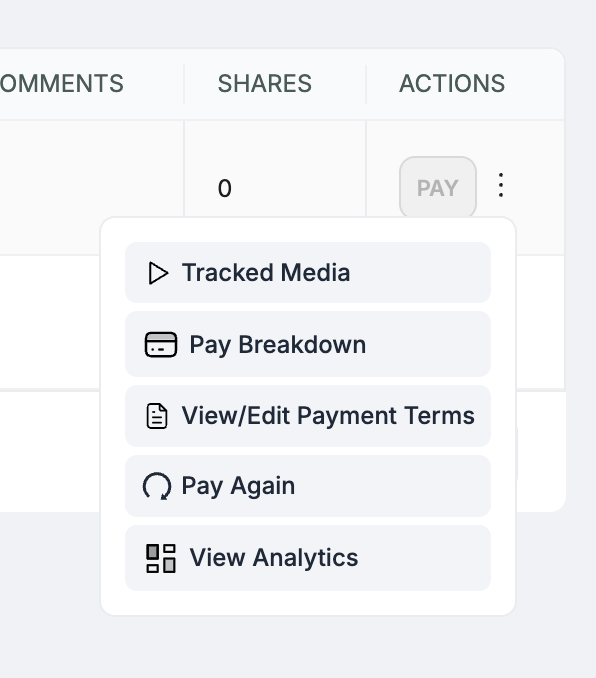
Open a campaign with a creator in it that you want to track videos/accounts for. In the creator table, hit the three dot icon in the row of the creator you want to add tracked media for, and a context menu appears.
Click “Tracked Media”. A side drawer will open.
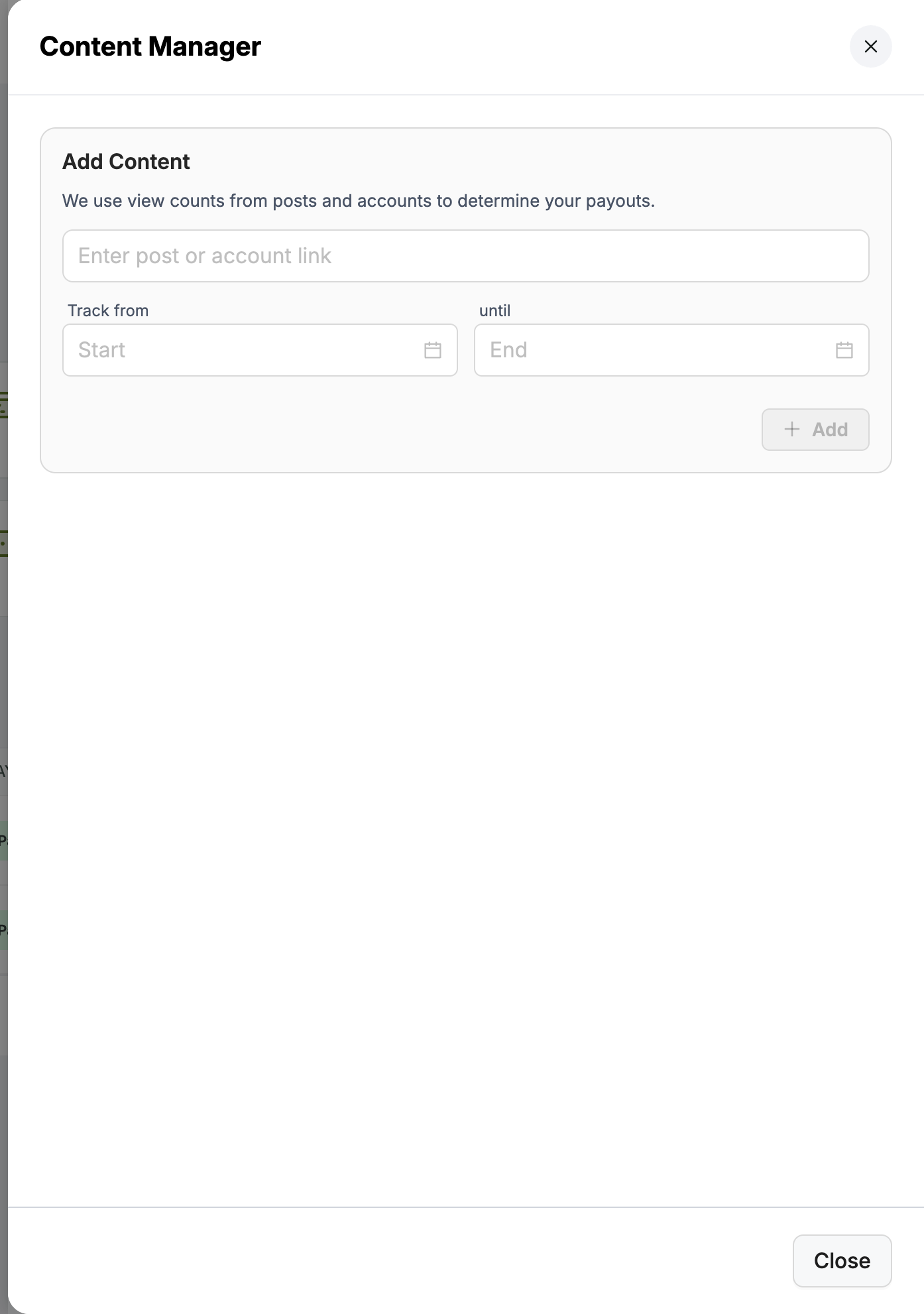
This is your content manager. Each creator gets their own content manager, and this allows you to see a high level view of all the videos and accounts you’re tracking for this specific creator, and add more as you need.
Tracking a video
Tracking videos on TikTok, Instagram, and YouTube are all the same. You copy the share link, and paste it into the link input.
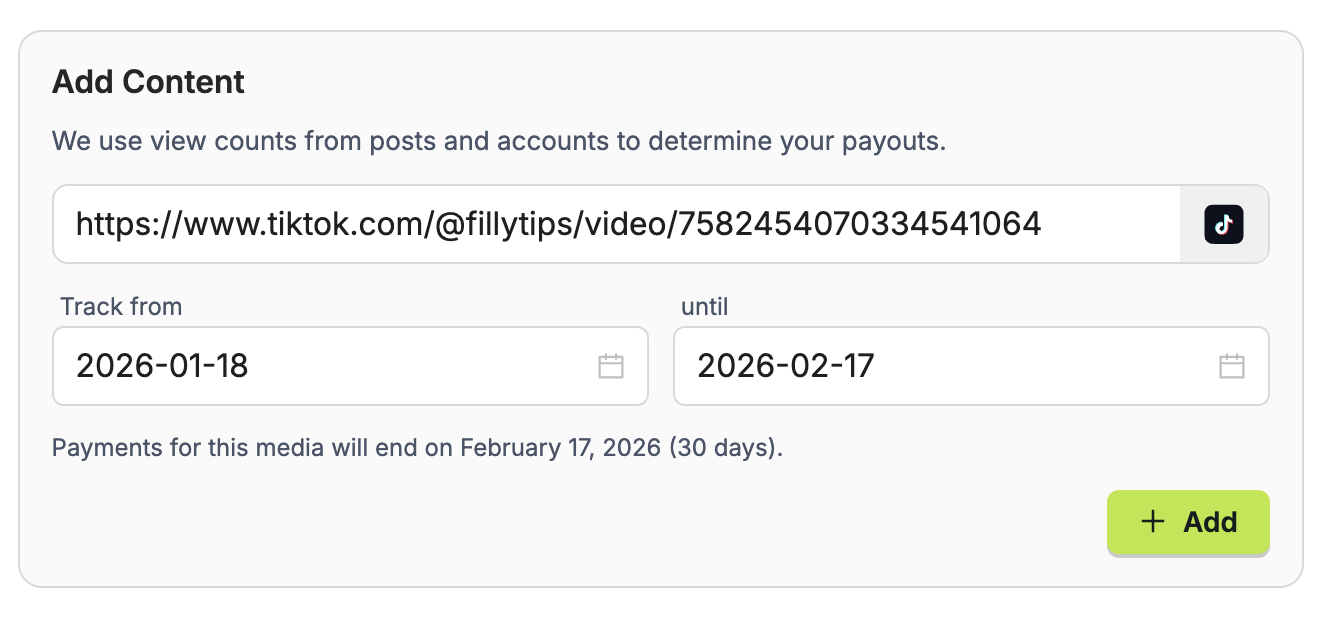
You’ll notice that when you pate in the share link, we automatically detect what the platform is, and more importantly, we fill in those two date inputs, “track from” and “track until”.
These two dates represent how long you will be tracking and paying for that video. If you have an agreement with your creators that you’ll pay for all the views generated on a video for 7 days, then you’d change the “until” date to be one week from today.
That makes sure you are not paying for extra views when it comes to payout time. By default, we set it to 30 days, but you can change it as you wish.
Once you have properly set it up, hit add, and you’ll see it appear in a table below.
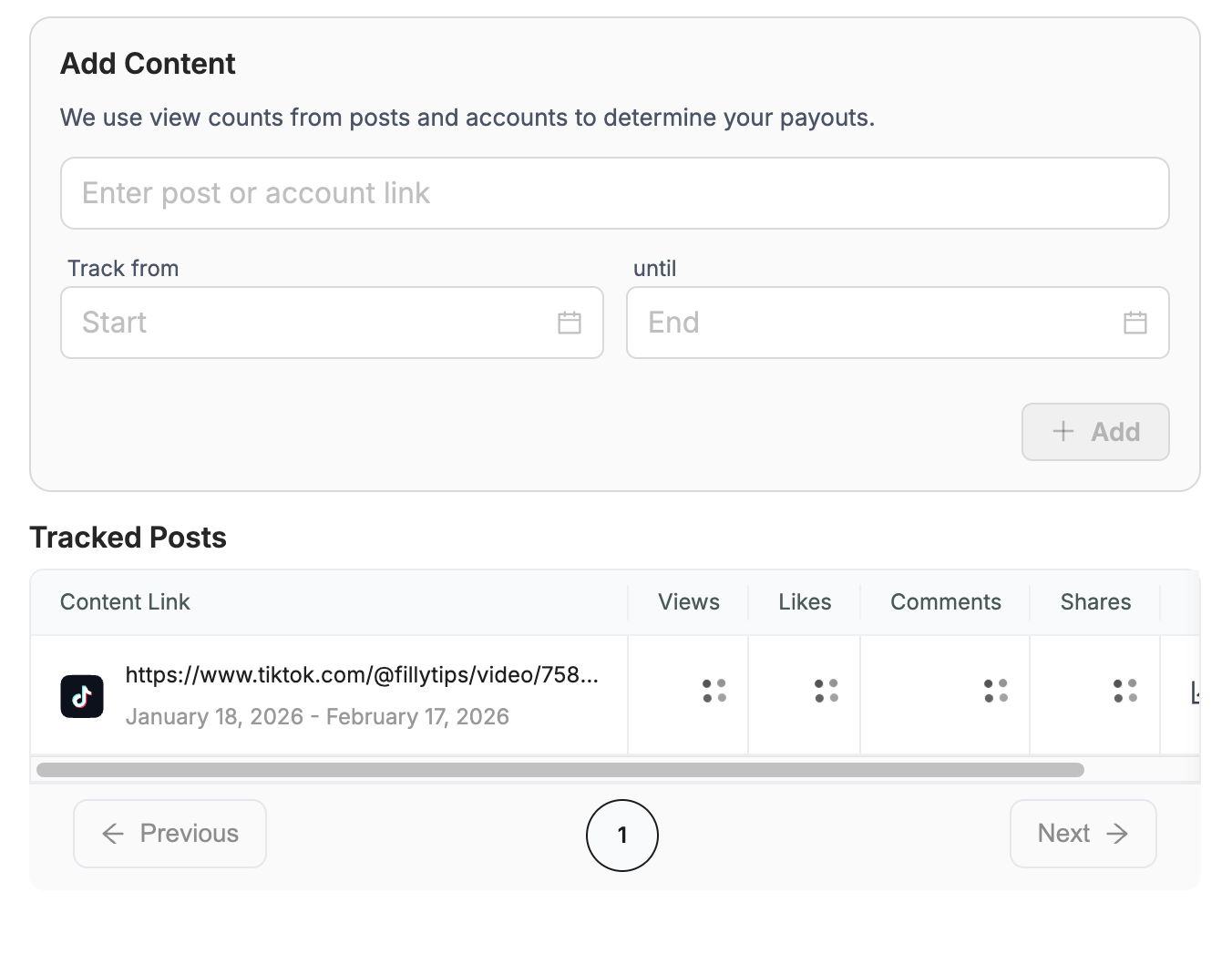
It will have those spinners going for a minute or two while we actively fetch the current metric data. It’ll automatically update once we’re live.
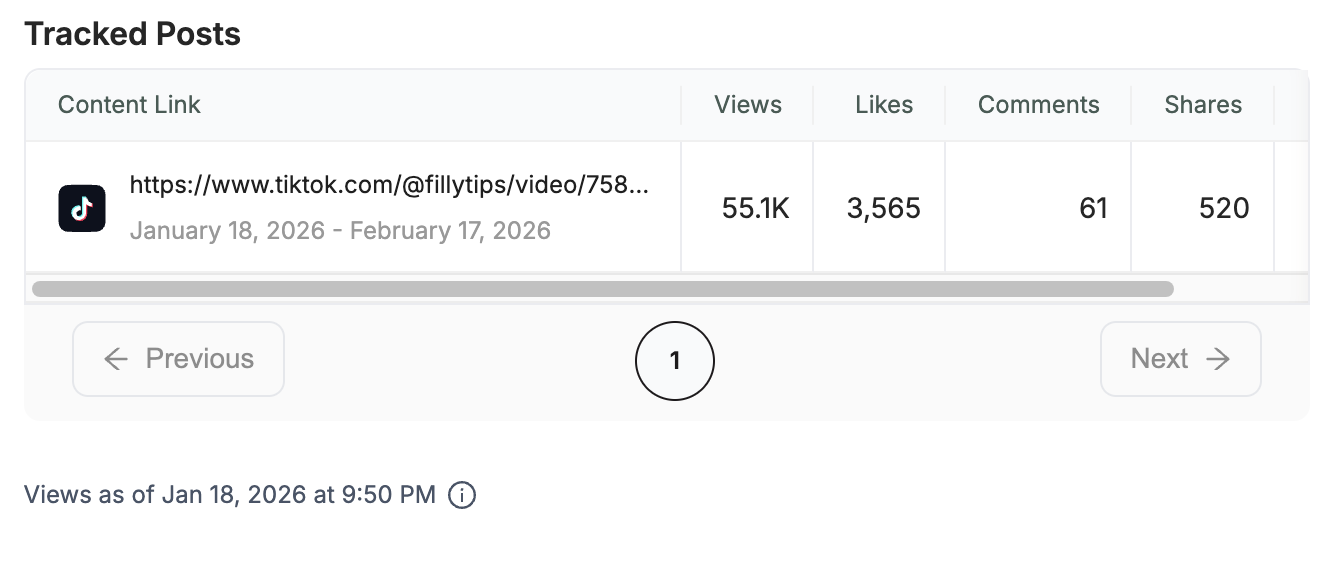
Aaaaaand we’re live.
You can add as many videos as you want this way. However, if you’re having creators post every single day, it can be really annoying manually adding each and every video. We have a solution for that.
Tracking Accounts
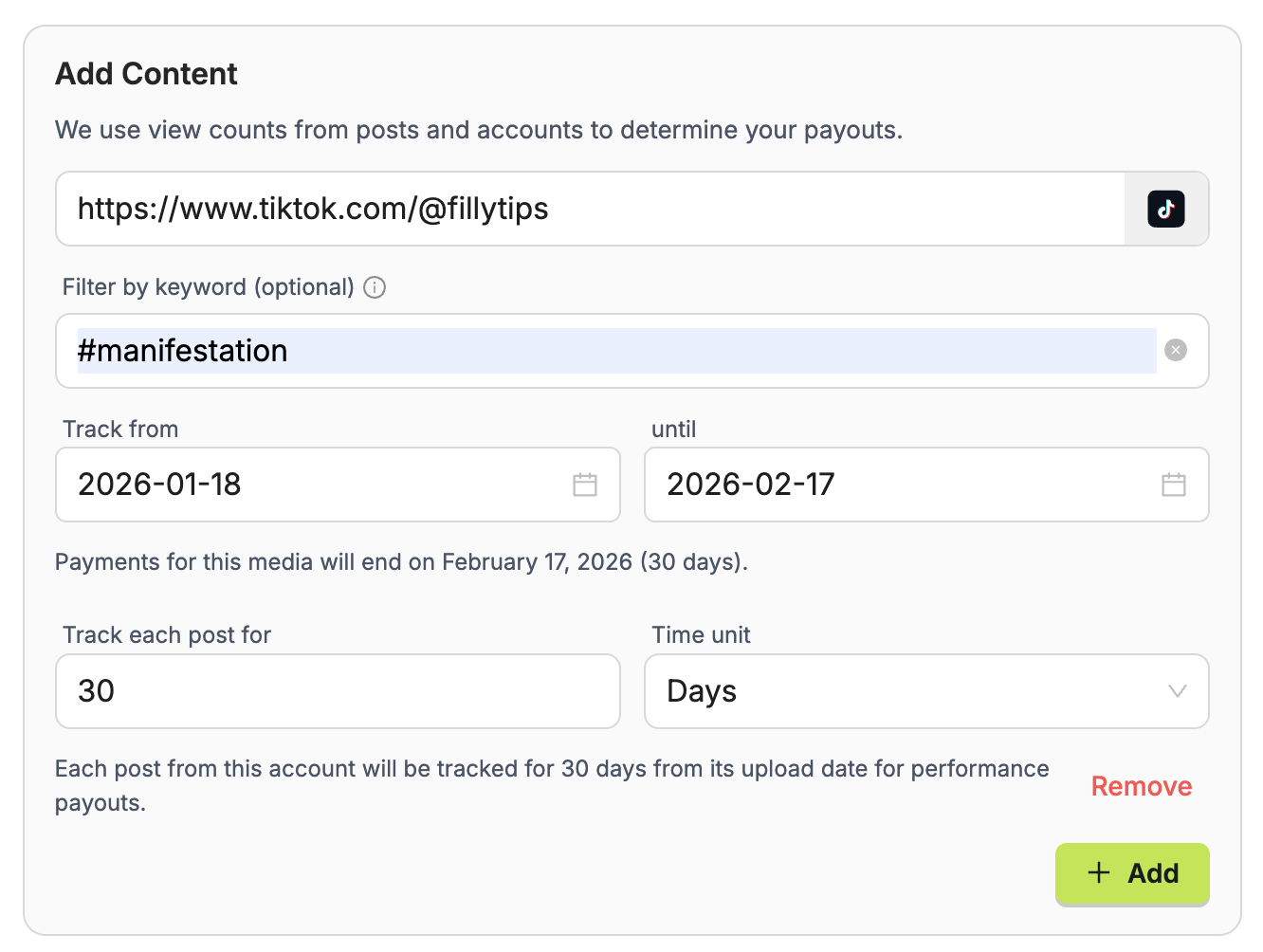
We also let you track TikTok, Instagram, and YouTube account in much of the same way. Instead of copying and pasting in a video share link, paste in the account’s url:
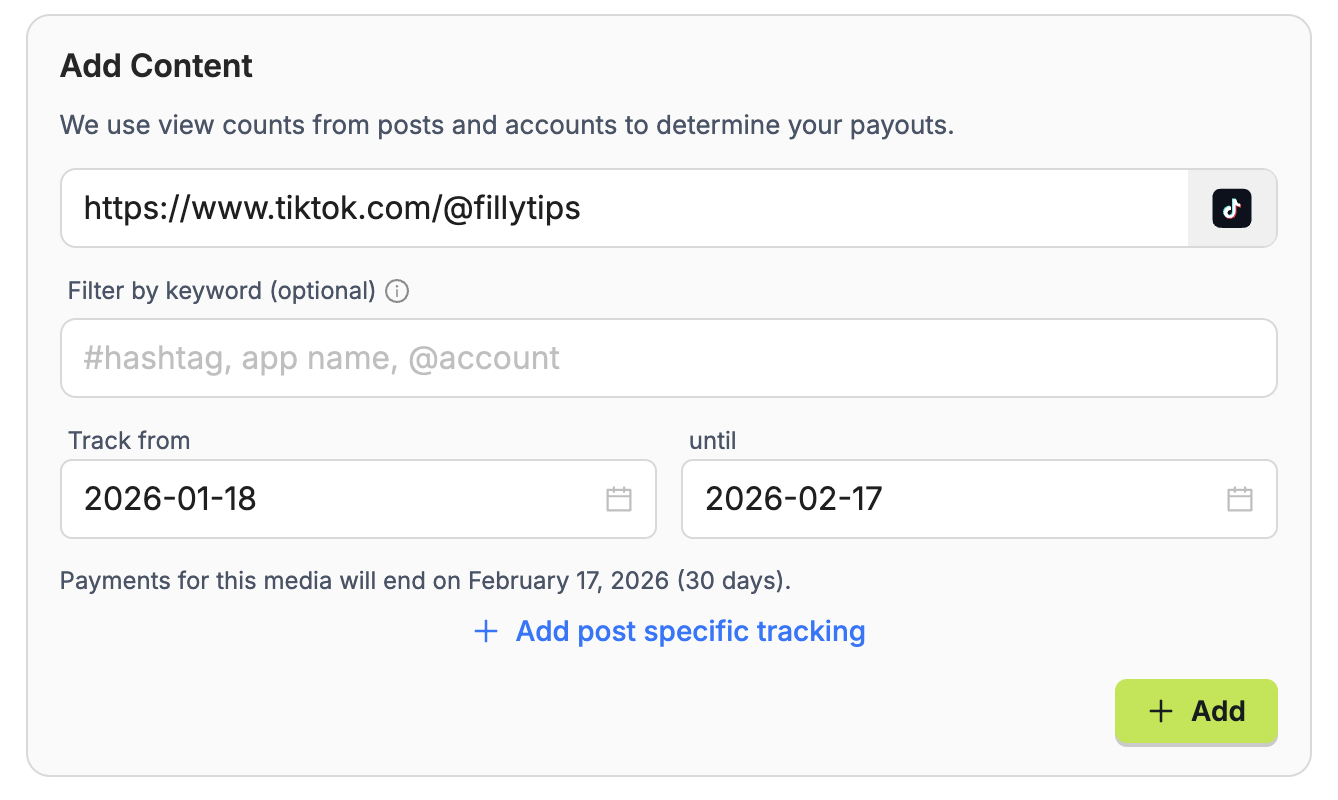
You’ll see, very similarly to tracking a post, we auto detect the platform and some new options appear.
We’ll start with filtering by keyword, which is optional.
Sometimes you will pay creators to post a few times on an account that is not entirely devoted to your app. This is very common in influencer marketing, when you pay an influencer to post about your app a few times within a time period.
We’ve create a simple way autodetect those videos for that creator; if you have them mention your app, use a hashtag, or tag your account, you can add it to this filter and Grade will only track the videos with that keyword in the caption. Simple as that.
We have the same “track from” and “track until” date inputs here. These work similarly to the video variant of this, Grade will only track videos uploaded within this date range up until the “track until date”.
Then we have the option to add post specific tracking. This allows you to track videos for a certain length of time after it’s been uploaded, even if it was uploaded on the last day of your “track until” time.
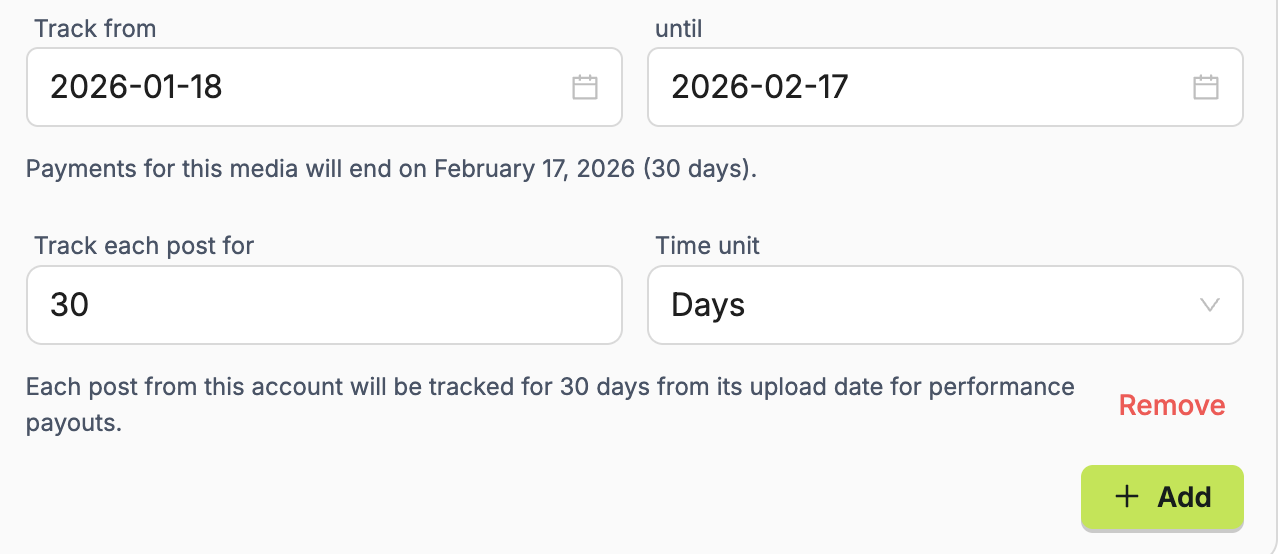
Practically, what this example means:
- If a video is uploaded on February 17th, 2026 (2026-02-17, the “track until date”), we will collect view data for that video for 30 days, or until March 19th, 2026.
- We will not track videos uploaded on February 18th, 2026 (2026-02-18, after the “track until date”) since it’s out of the time bounds.
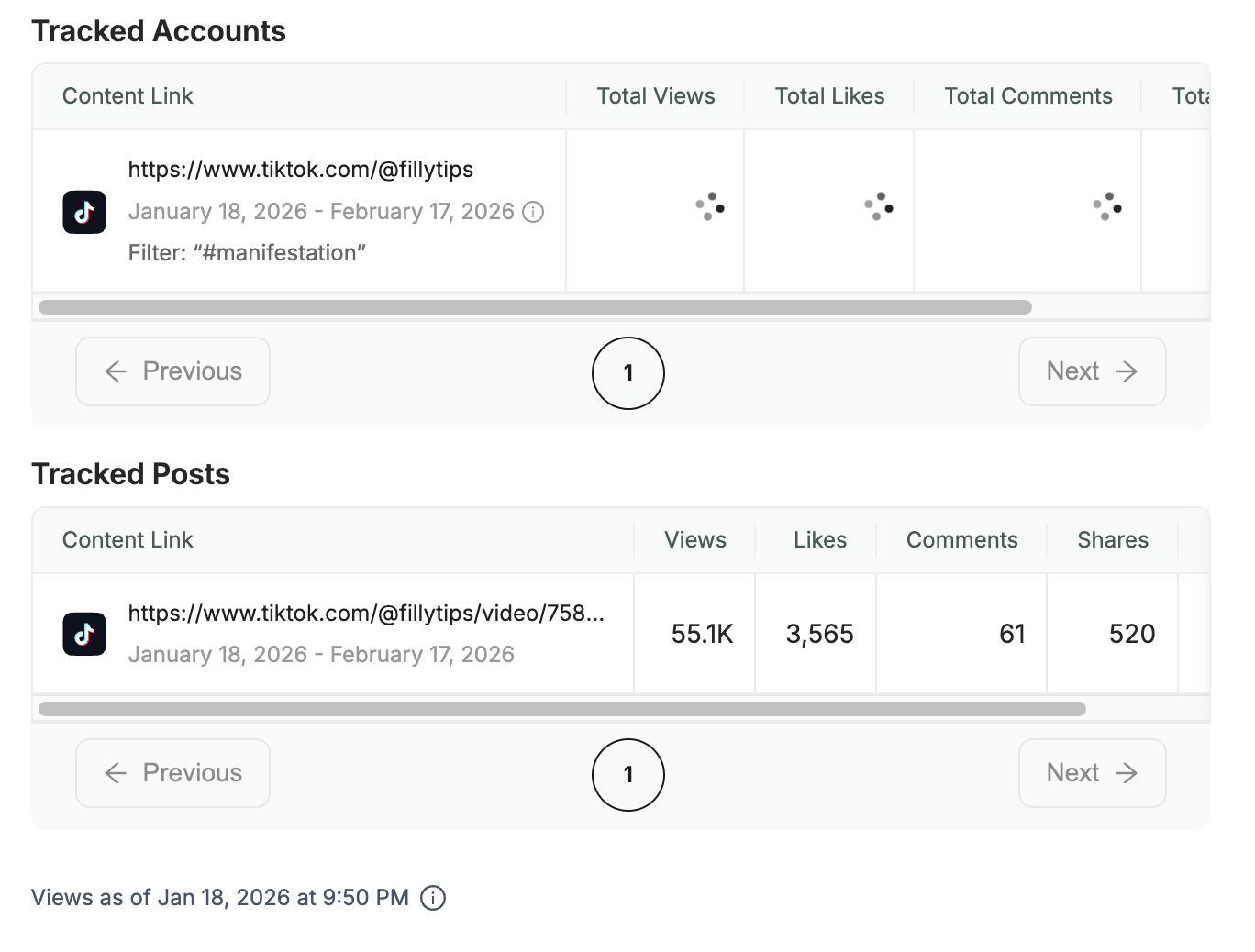
Once you have setup your tracking how you like it, hit the add button to start tracking.
In the same way the post needed a few minutes to initially get the views data, so will the account. We also display any filters applied to account tracking and post specific tracking, if any.
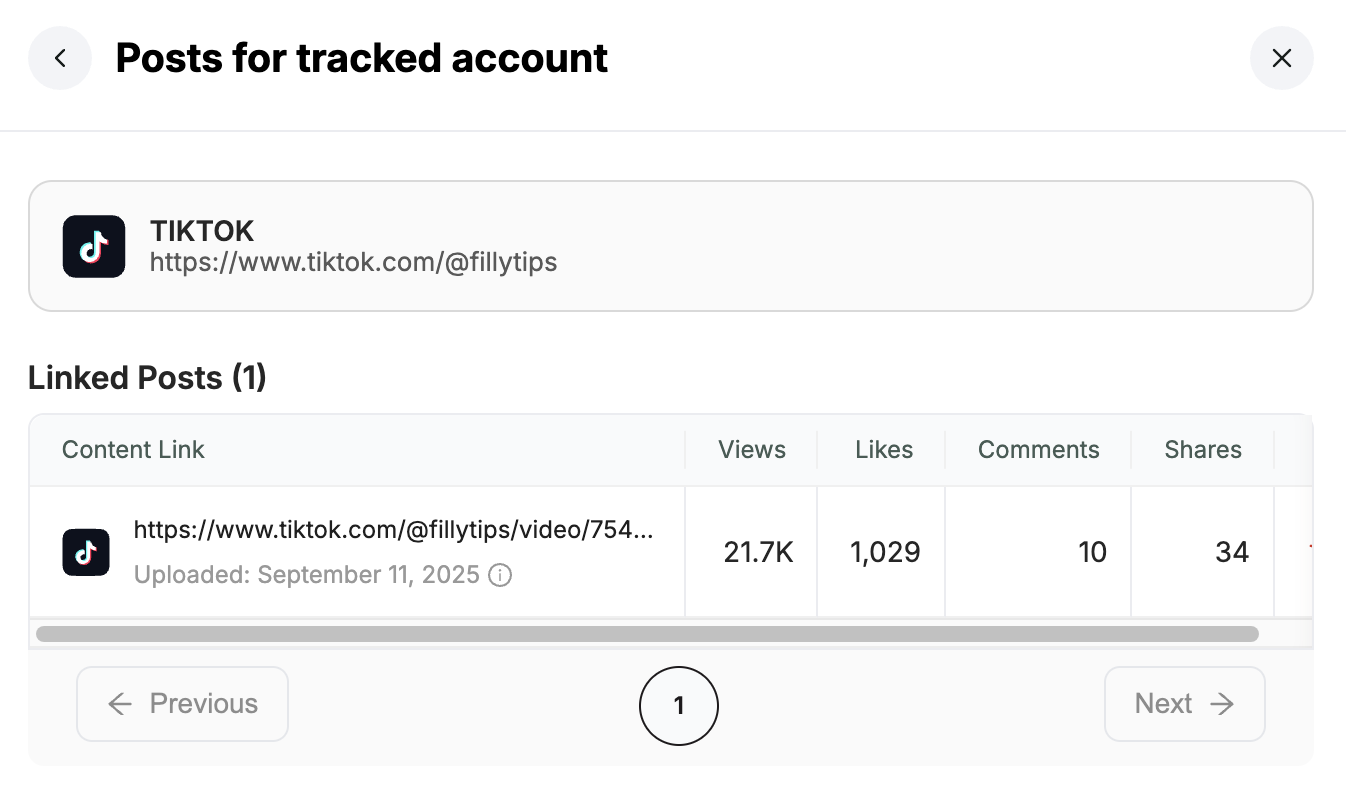
Once the tracking has completed, you can click on the table row and see all of the videos we’ve pulled that matched your filter. From here you can have a high level view of how all the creators content is performing.
Basing payouts on views
With all of the videos and accounts you track, we automatically do the calculations to determine exactly how much you need to pay based on how your creators performed, and your stated rates. All you have to do is click pay.
Ready to scale your contractor payouts?
With just their email, you can track results, send payouts, and automate tax forms.
Try Grade Free →
