
How to setup payment terms for a creator
Grade allows you to pay your creator in just about every way you can imagine. Below are the options we offer on the platform.


Grade allows you to pay your creator in just about every way you can imagine. Below are the options we offer on the platform. At the end of this article, we’ll include our recommendation based on what we’ve seen the most successful, and what to do if you don’t see your payment terms included here.
Fixed Price
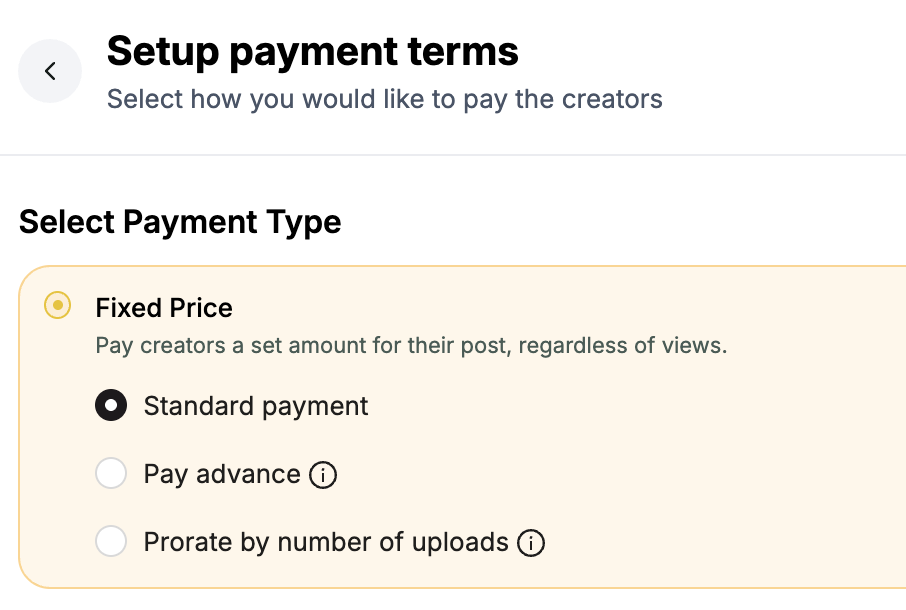
This is the most standard way to pay. It involves just a flat rate that is paid out, with no further strings attached.
We offer fixed rate as a standard, where there is just one payout for the entire fixed amount, or we offer a number of variations:
Pay Advance (Some paid upfront, the rest later)
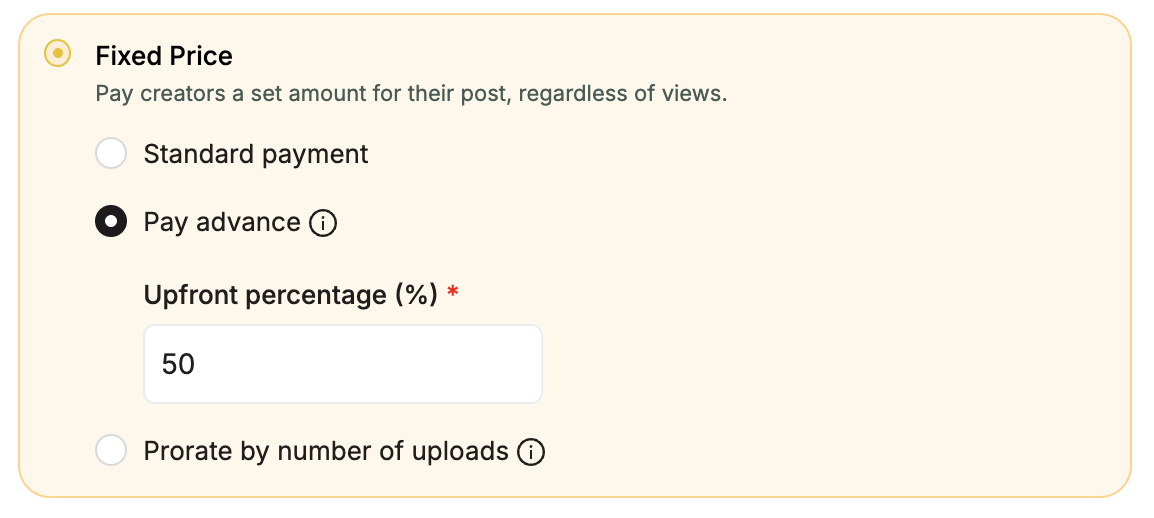
We allow you to split your fixed payments into customizable chunks, which means you can pay out some of your fixed rate now, and some later.
Examples of this would be half upfront, half later; or 30% upfront, and 70% once the job is completed.
We allow you to customize the upfront amount fully.
Prorated (Paid assuming the job is actually finished)
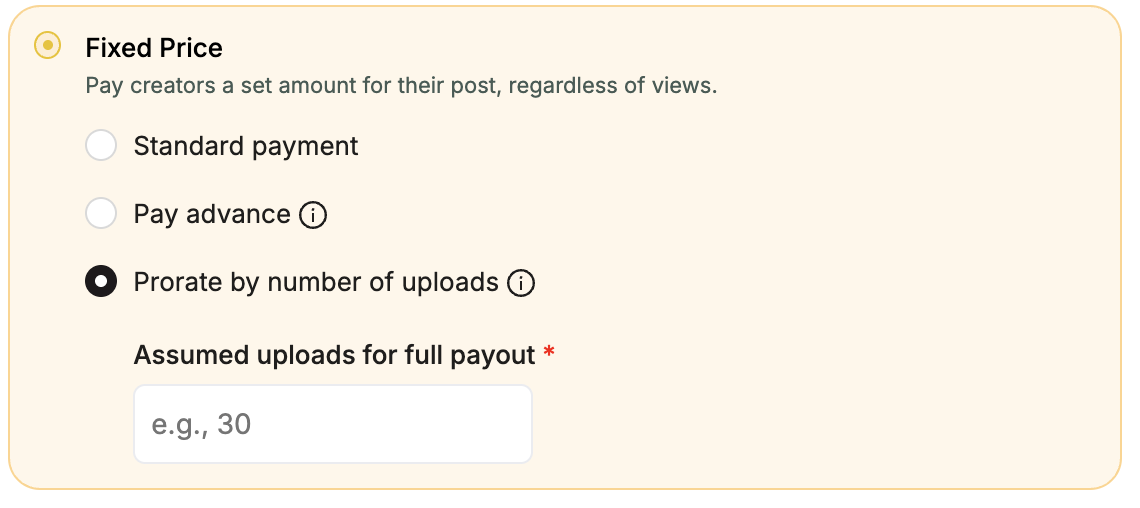
We allow you to pay your fixed amount based on the amount of videos a creator has uploaded. That means, if you agreed to $100 for 10 videos and they only upload 7, they only get $70. This offers a safety net around your fixed price term.
Performance
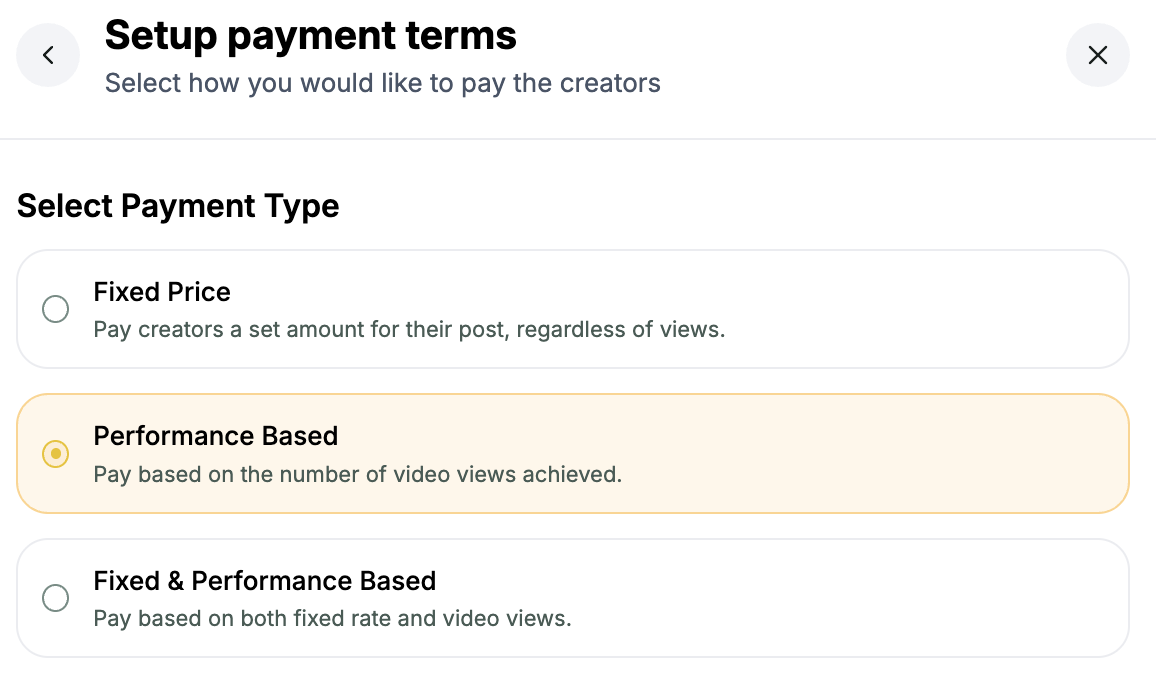
We allow you to pay your creators based on their performance. This is usually paid out with a “CPM rate” (cost per milli, essentially how much you’re willing to pay per 1000 views).
This is a very common way for brands and agencies to payout their creators, and mimics very closely how YouTube, TikTok, and other creator platform payout programs function.
With performance, we’ve built a number of safety nets to ensure you are spending your money most wisely.
View Thresholds
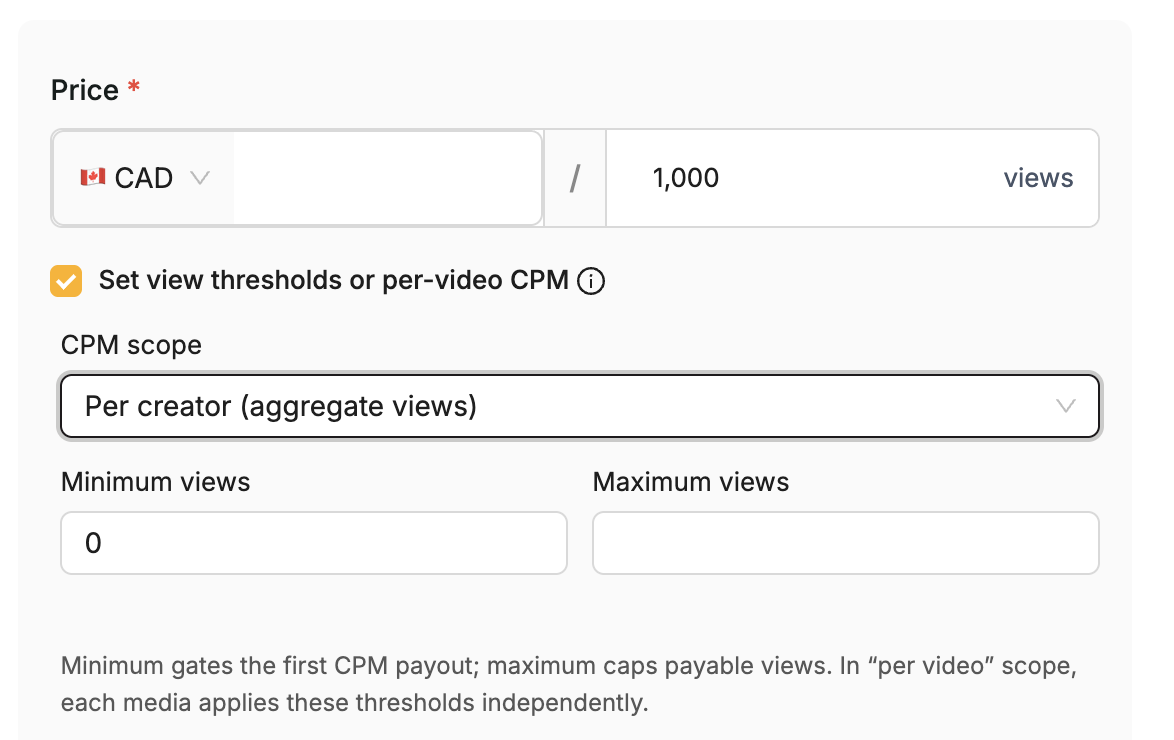
You can set view thresholds. This basically means, on a per-video or per-creator basis, you will only pay for the views above the minimum and below the maximum threshold.
For example (per creator):
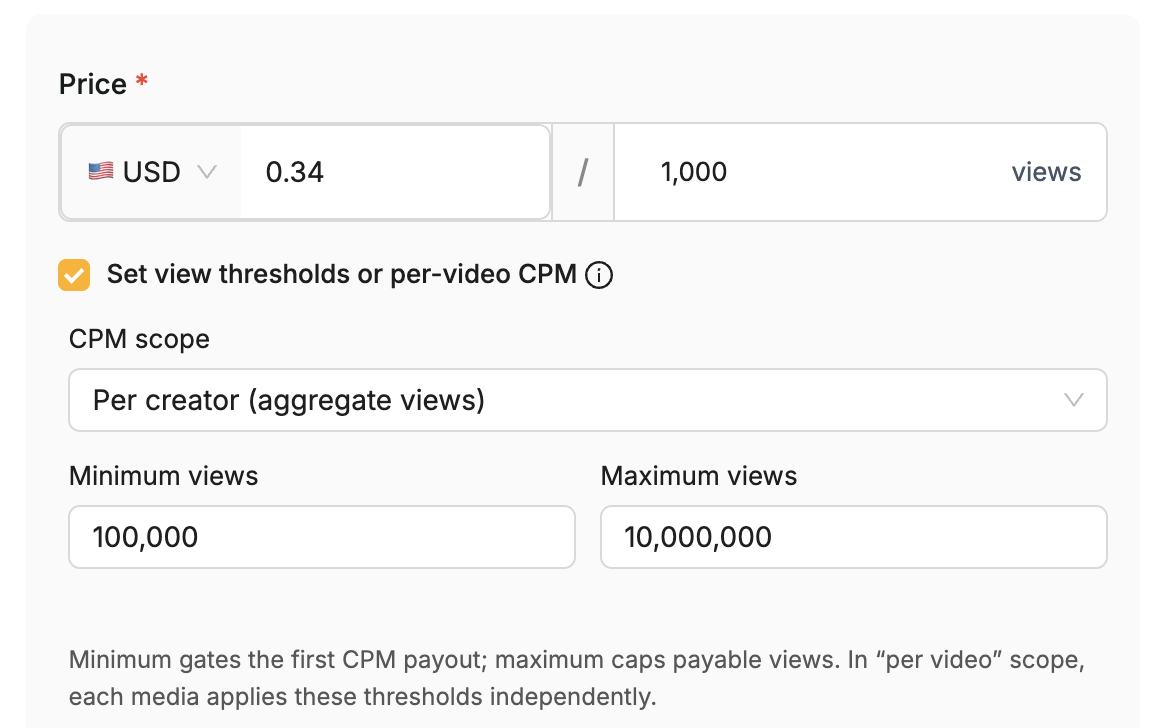
This means that for each creator you will only pay if the total views they accrued crossed 100,000 views, and you won’t pay for any views accrued over 10,000,000.
In practical terms:
- If the creator, across all their videos, only get 67,000 views, you pay them nothing.
- If the creator, across all their videos, gets 103,000 views, you pay them $35.02 (103,000 views * $0.34/1000 views = $35.02).
- If the creator, across all their videos, gets 14,378,000 views, you pay them only for 10,000,000 ($3400).
Another example (per video):
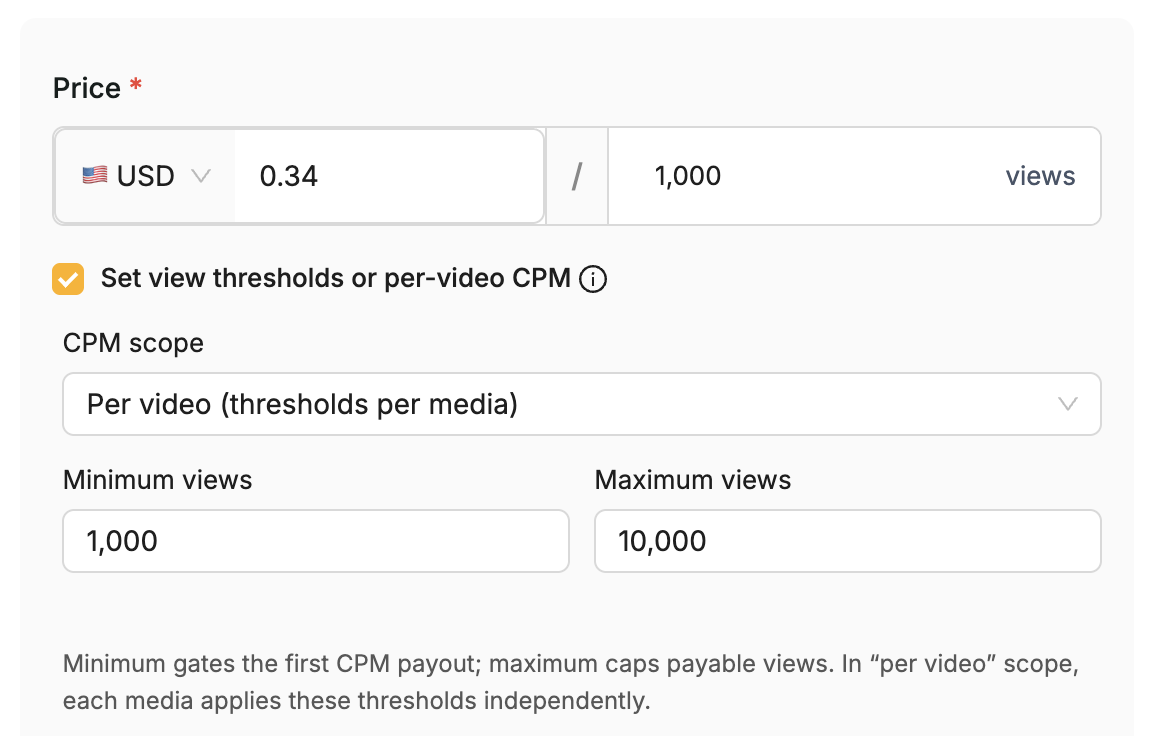
In this case, instead of using the total views across the creator, we apply the minimum and maximum thresholds on a per-video basis.
In practical terms:
- If the video gets 600 views, you pay the creator nothing.
- If the video gets 8794 views, you pay the creator $2.99 (8794 views * $0.34/1000 views = $2.99).
- If the video gets 1,487,403 views, you pay the creator for 10,000 views, $3.40.
- If a creator has 4 videos, which each get 7000 views, you pay them $2.38 for each video, so in total you payout $9.52.
Maximum spend
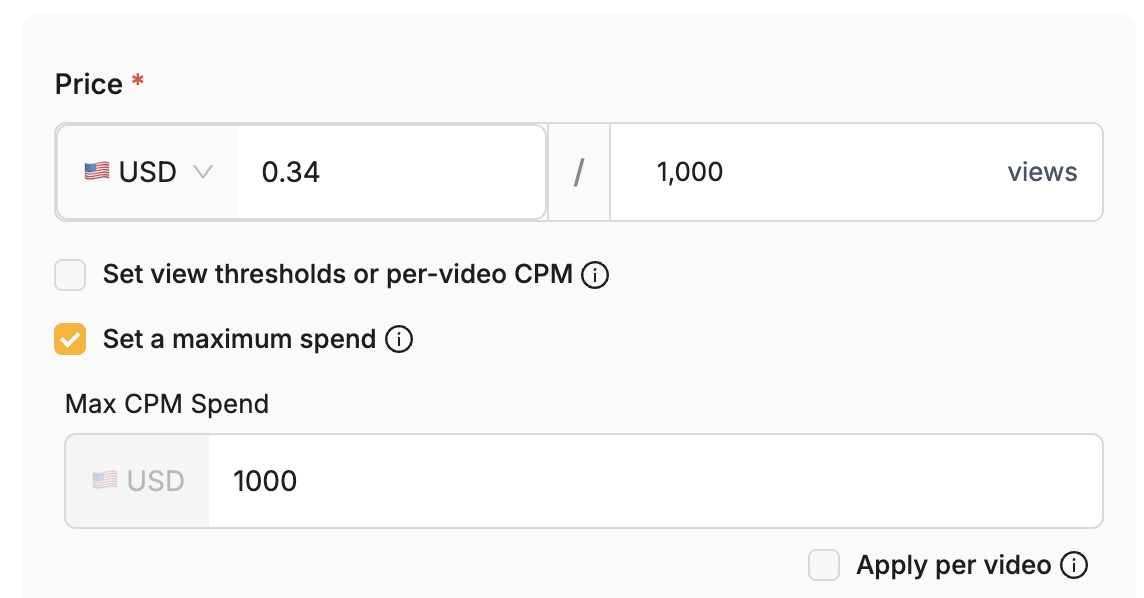
We also allow you to set a maximum spend option on a per-video or per-creator basis. This lets you put a hard stop on your payouts to ensure they don’t suck up your entire budget.
If you apply the maximum spend to the creator as a whole, that means that you will never spend more than that amount, no matter on how many views they collect.
If you apply the maximum spend on a per-video basis, you will never spend more than that on each video.
Fixed + Performance
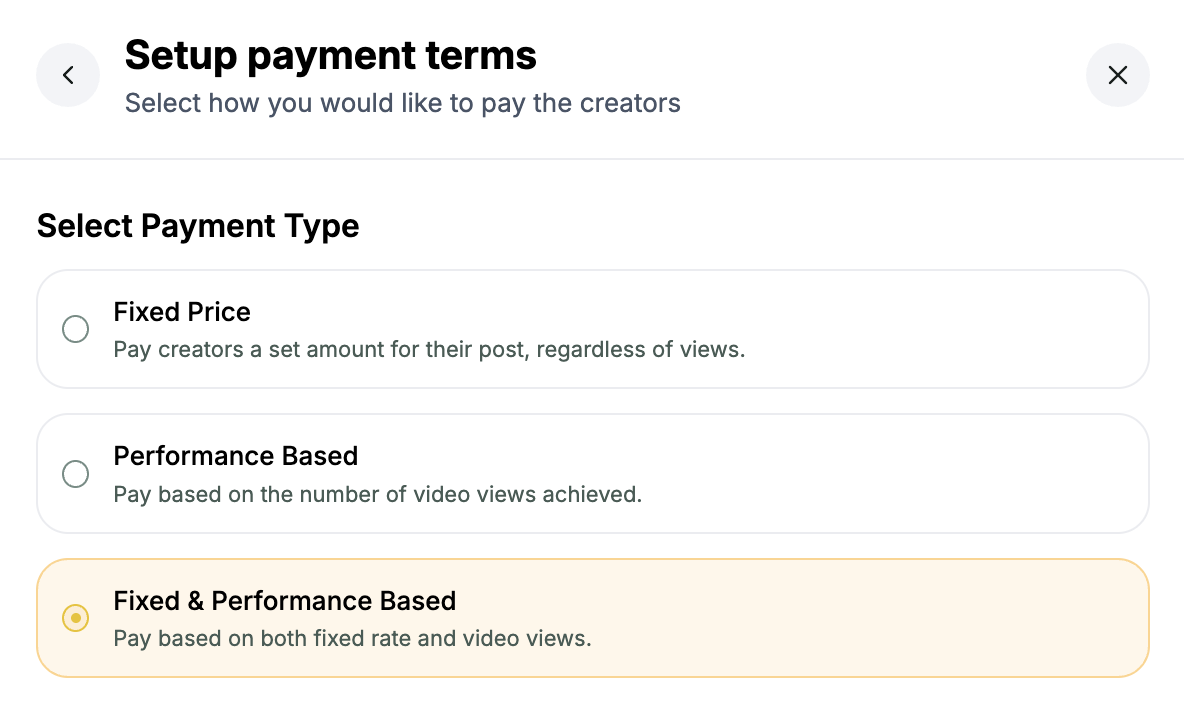
We also let you pay both fixed and performance, at the same time. This allows you to pay a fixed base amount and then reward the creators for their performance, in addition to that. This is the combination of both mentioned before, and you can apply the same view thresholds and maximum spend options as performance.
Bonuses
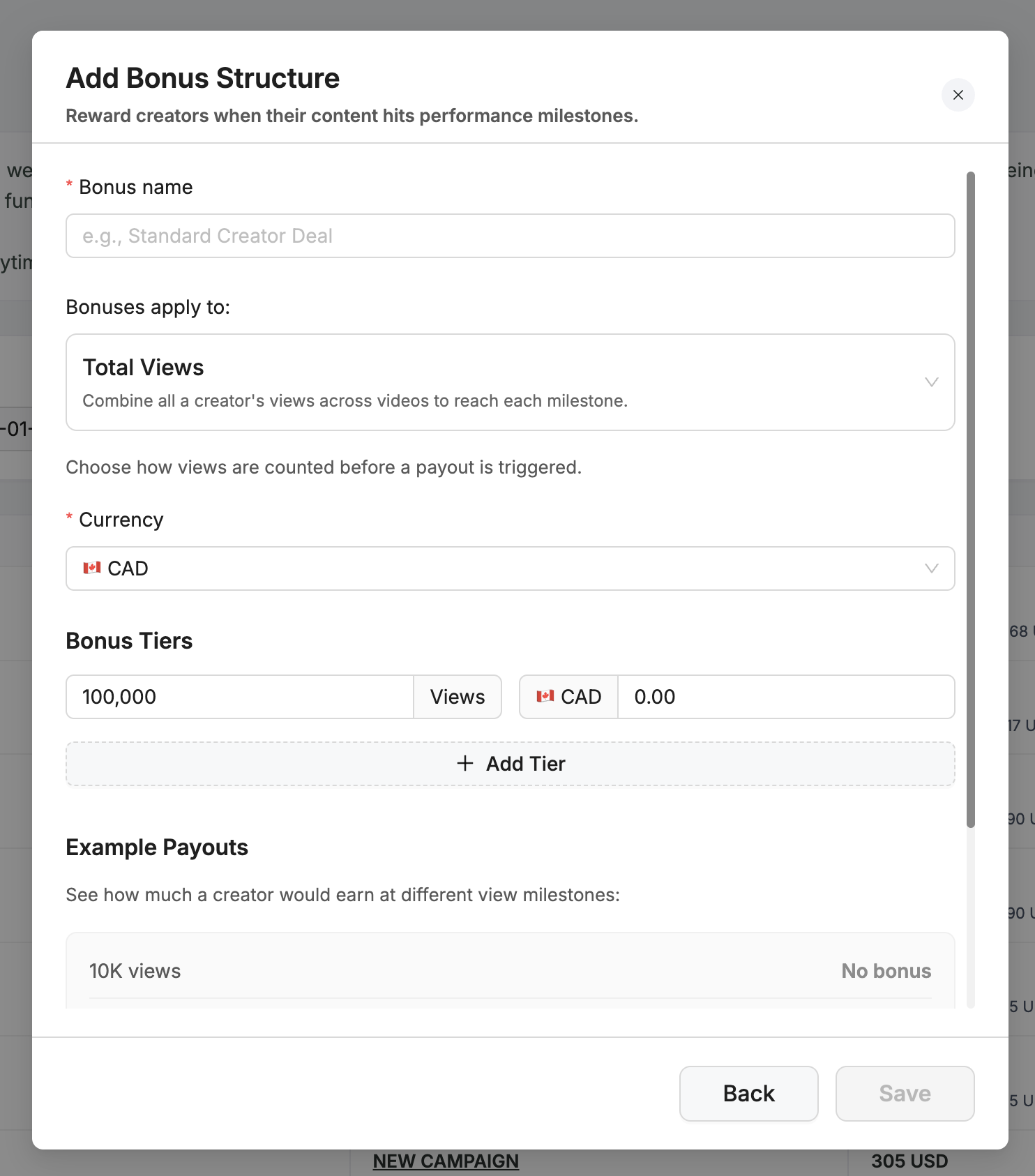
Many brands and agencies we work with like to include bonus terms for their creators, allowing them to make a little bit of extra money if they hit certain milestones. Grade supports a wide range of bonuses, below are a few of the options.
Note: you can customize your bonuses by going to the payouts page and click the ‘Edit Bonuses’ button.
Bonuses for total view milestones

This collects all of the views across all of the videos a creator posts, and applies the bonus based on the aggregated views.
Bonuses for each video

This applies the bonus to every video that reaches the set milestone, individually.
Bonuses for the best video

This takes the best video the creator uploaded at the moment of payout, and applies the bonus to just that video.
Setting up bonus tiers
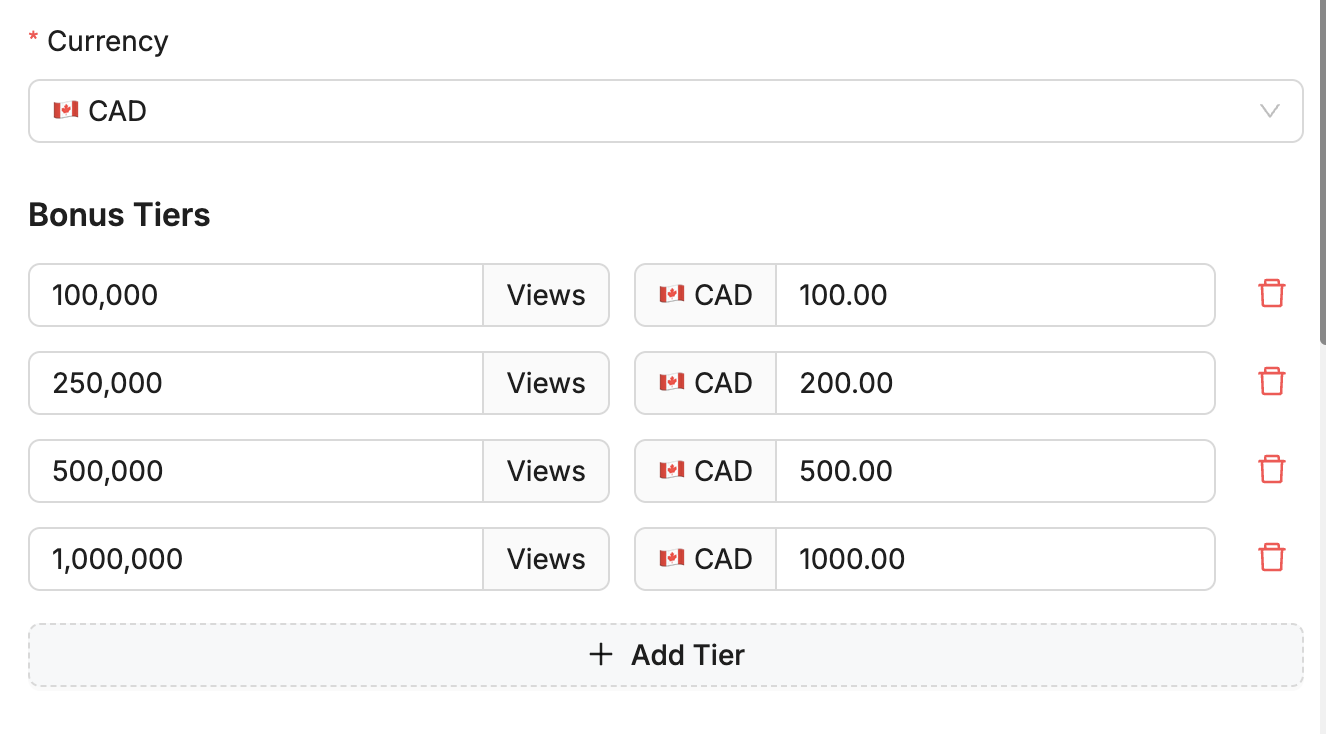
Right below the selector for applying bonus tiers, we have the ability to set our own custom tiers. Here, we can set a currency, and then create the bonus tier structure, as you’d like it.
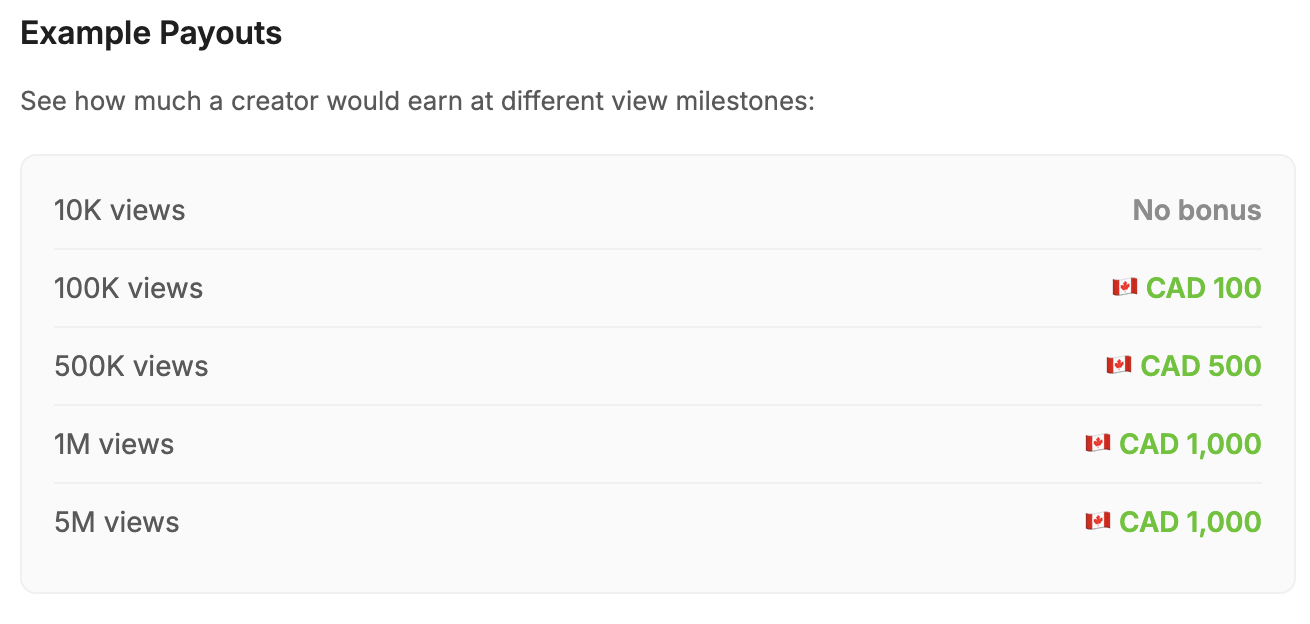
Right below it, we show examples of how the bonus would apply for a few different view points.
Saving the bonus
Once you’re finished setting up your bonus, you need to save it. This will allow you to apply it when setting up creator’s payment terms.
Applying the bonus
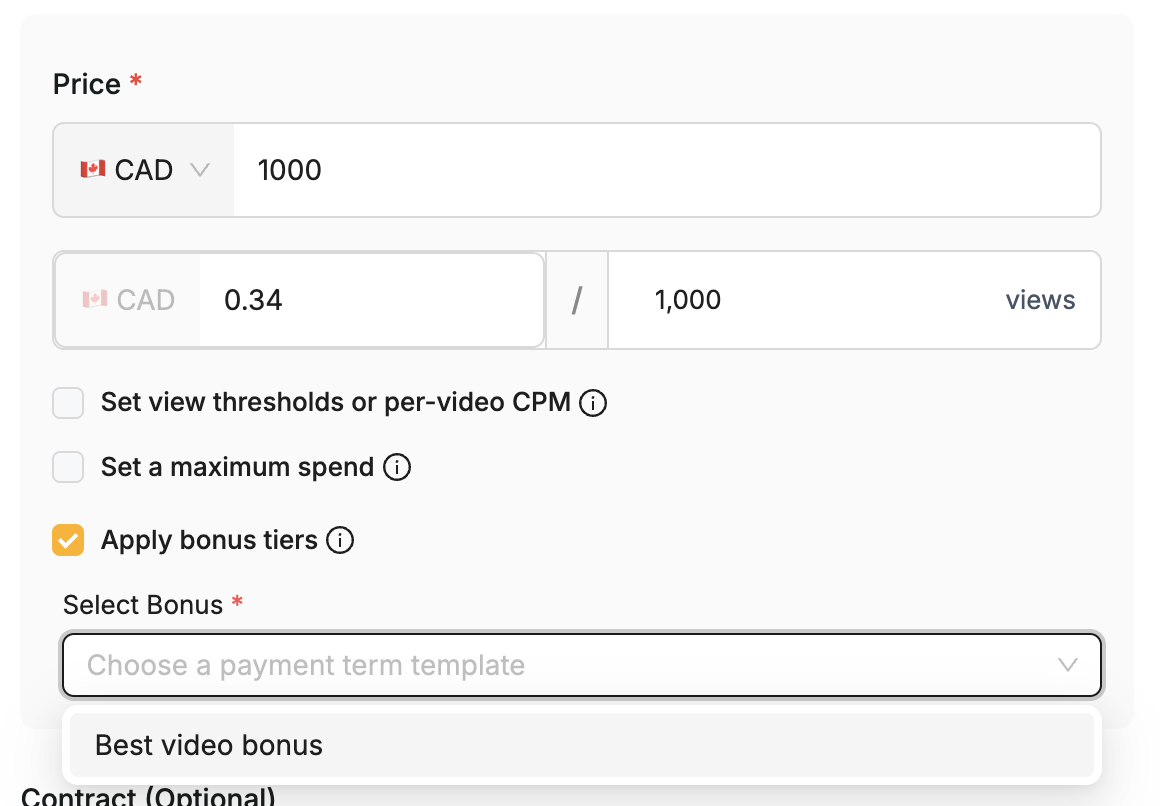
Once you have your bonus setup, you can apply it to a creator’s payment terms during setup by hitting the “Apply bonus tiers” checkbox and selecting the specific bonus you want to apply.
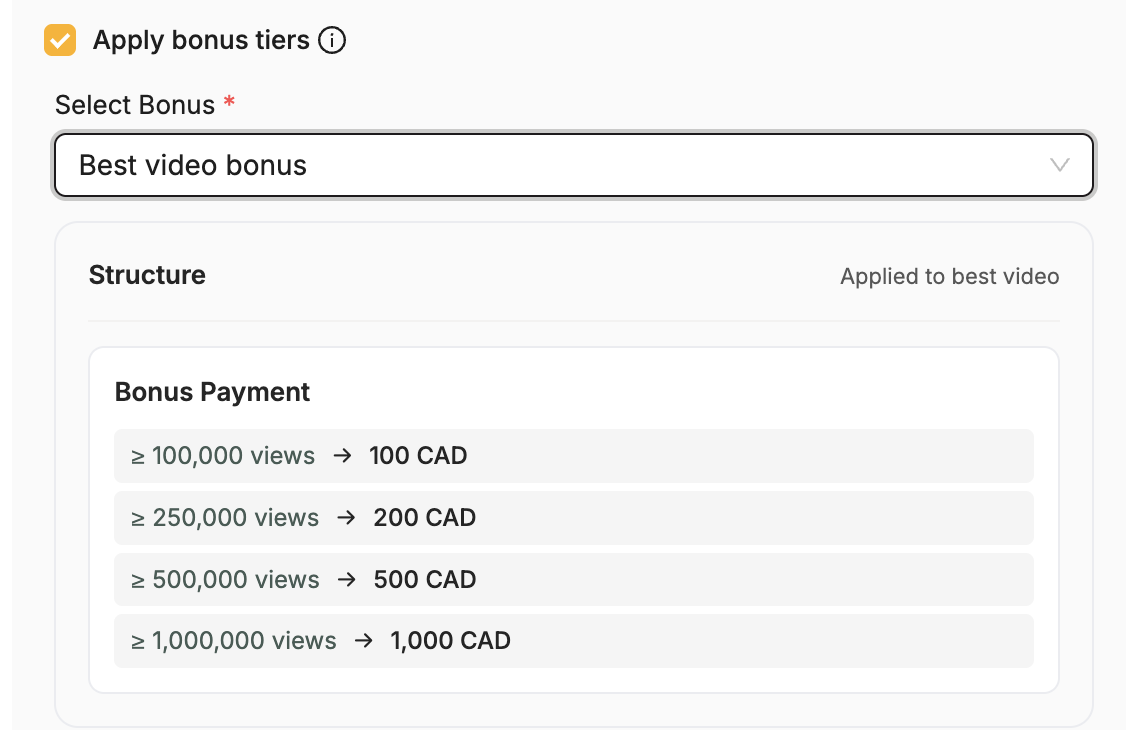
When you do this, a quick overview of the bonus will show.
Manual Bonuses
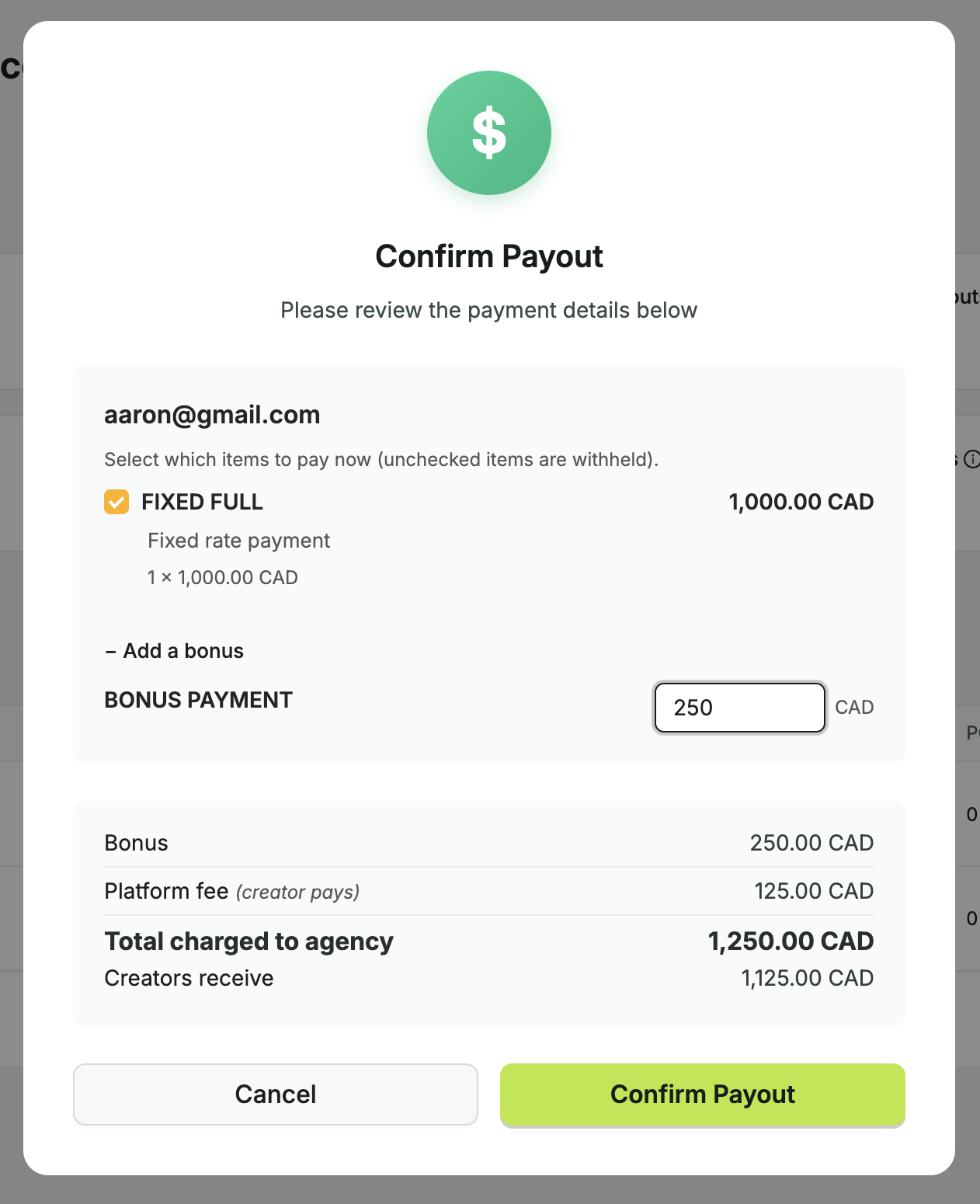
We also include the ability to manually add a bonus at payout time.
When you hit pay, a confirmation modal will appear in front of you. Select the “Add a bonus” button, and you’ll be able to manually add a one-time bonus right there at payout time.
Recurring payouts
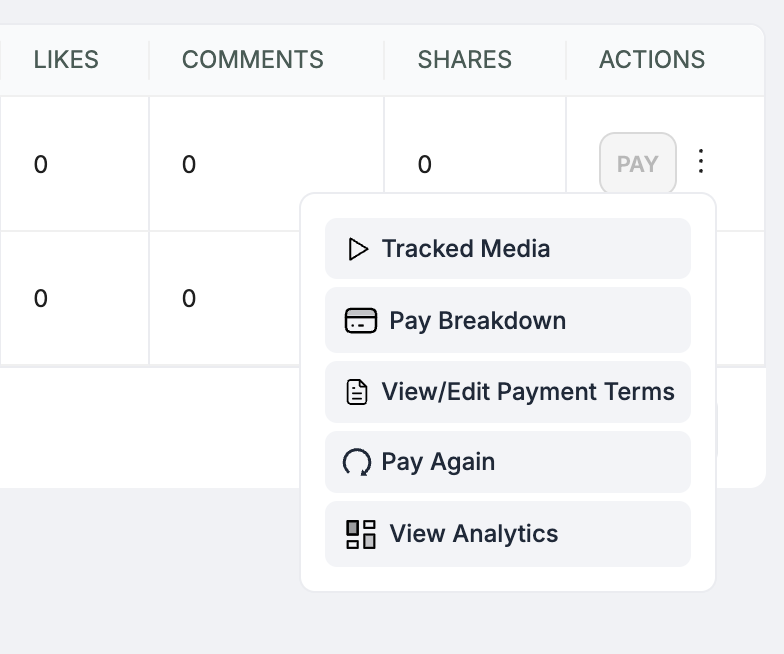
You always have the option to end and start a new campaign to organize your finances, invoices, and payouts. However, if you’d like to keep all the payouts in one campaign but have them recur, we offer a super simple way to do that.
Just select the three dot icon in the row of the creator you want to pay again, a context menu will open, and from there you should click “Pay Again”.
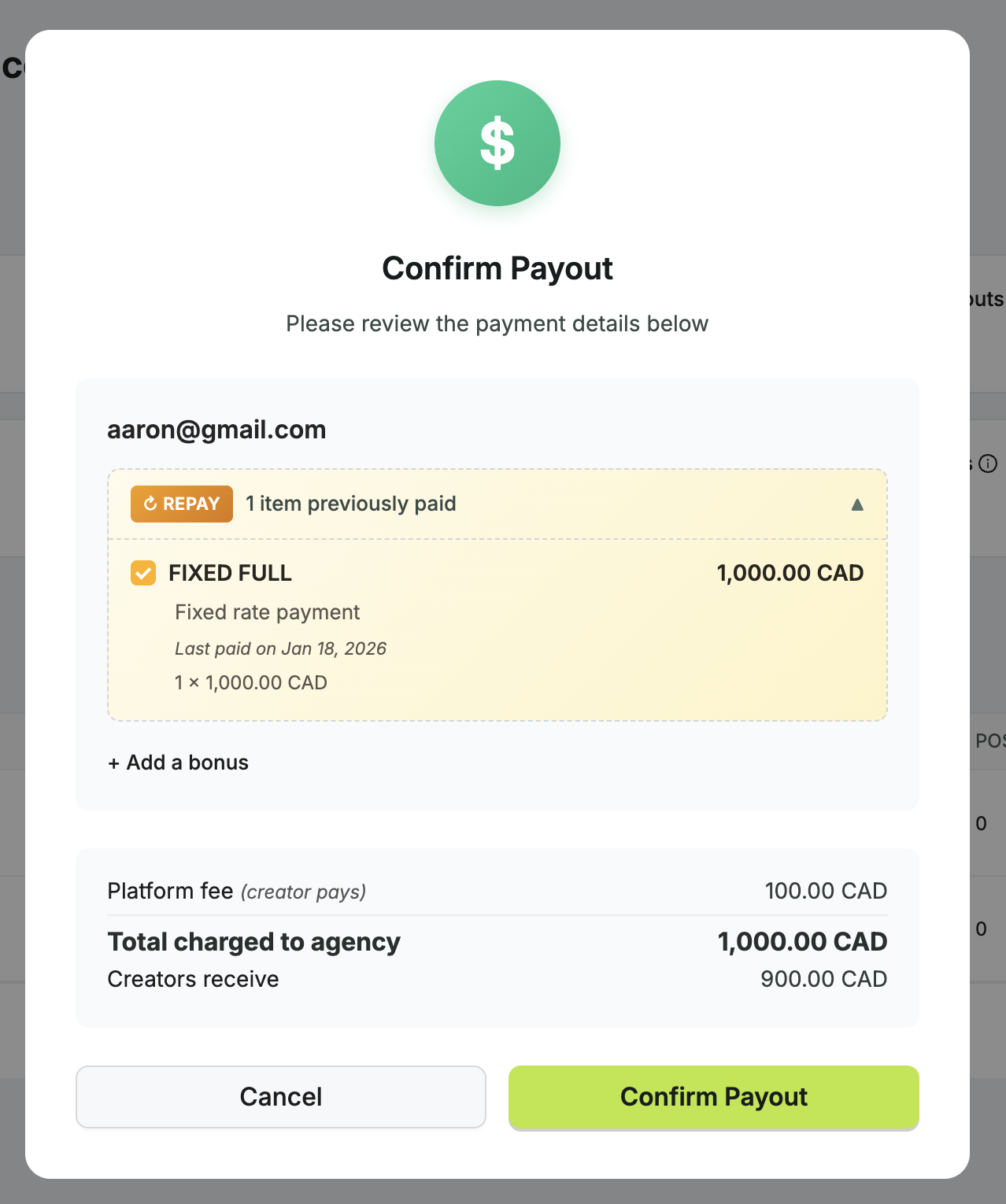
A modal will appear and inform you that this amount has already been paid out.
If you’re happy with it, you can hit confirm payout to send it immediately.
Editing Payment Terms
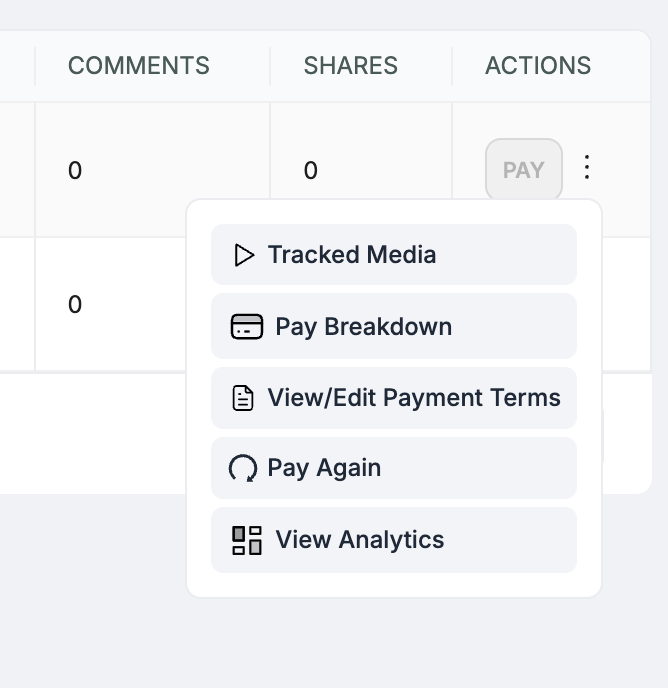
You can always edit payment terms by hitting the three dot icon in the row of the creator you want to edit, a context menu will pop up, and hit “View/Edit Payment Terms”.
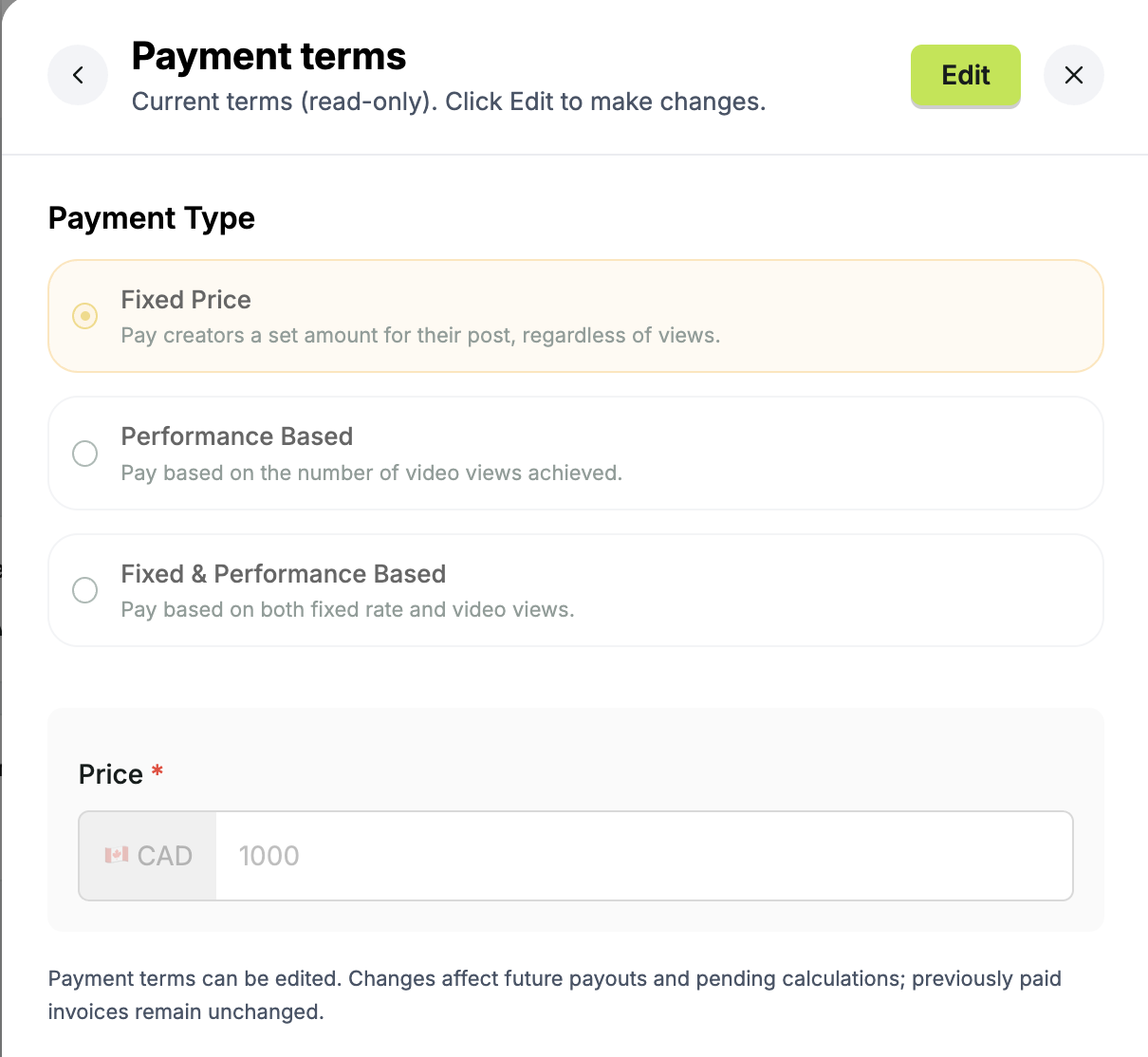
Hit the edit button in the top right of the side drawer that just opened.
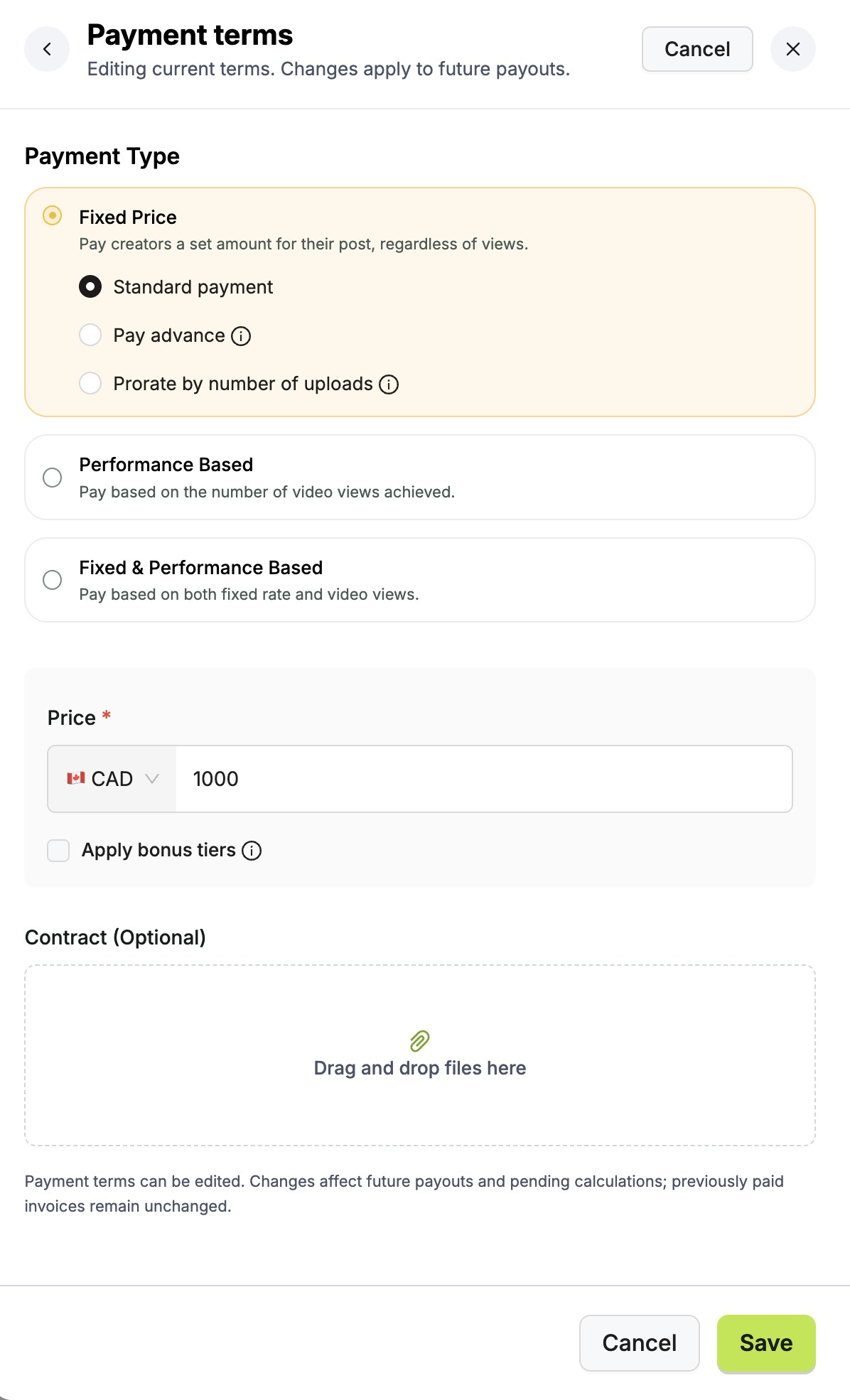
And now you have full flexibility to change the payment terms for any payouts going forward. Any previously sent payouts will remain the same.
Our recommended ways to pay
We have seen a lot of campaigns, and the most successful ones always pay a mix of fixed and performance.
The exact amounts vary depending on the target market, where the creators are located, the size of the brand/agency, and honestly even by the month of the year. However, that structure of paying a fixed rate and performance on top of that remains one of the most flexible and widely used payout options in Grade.
Maximum spend is commonly used, and so are bonuses. Once again, these vary.
“But… the way I pay my creators isn’t here!?”
No stress. Shoot us a message and we’ll see what we can do about adding it to our platform.
Ready to scale your contractor payouts?
With just their email, you can track results, send payouts, and automate tax forms.
Try Grade Free →
