
How to payout multiple creators at once
With Grade, we allow you to import a CSV and payout creators in one click. Many of our customers take advantage of this to do tens of thousands of dollars...


With Grade, we allow you to import a CSV and payout creators in one click. Many of our customers take advantage of this to do tens of thousands of dollars in payouts with a single button click.
Here is a step-by-step guide to payout your creators:
1. Go to the Quick Pay tab, click “Bulk Payouts”
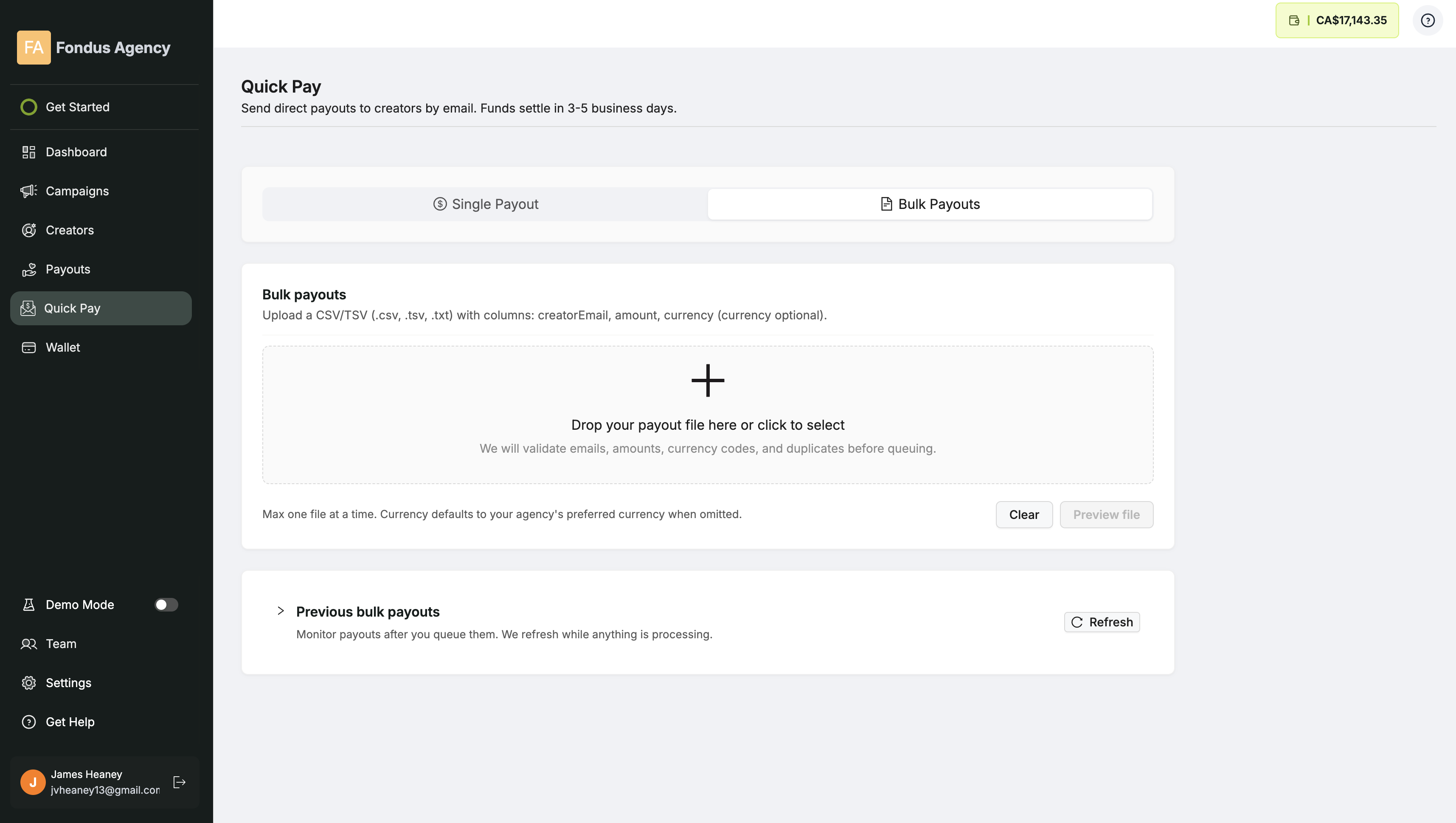
Here you can payout creators directly with just an email, or you can pay with a CSV for bulk payout options; that will be our focus for now.
2. Prepare your spreadsheet
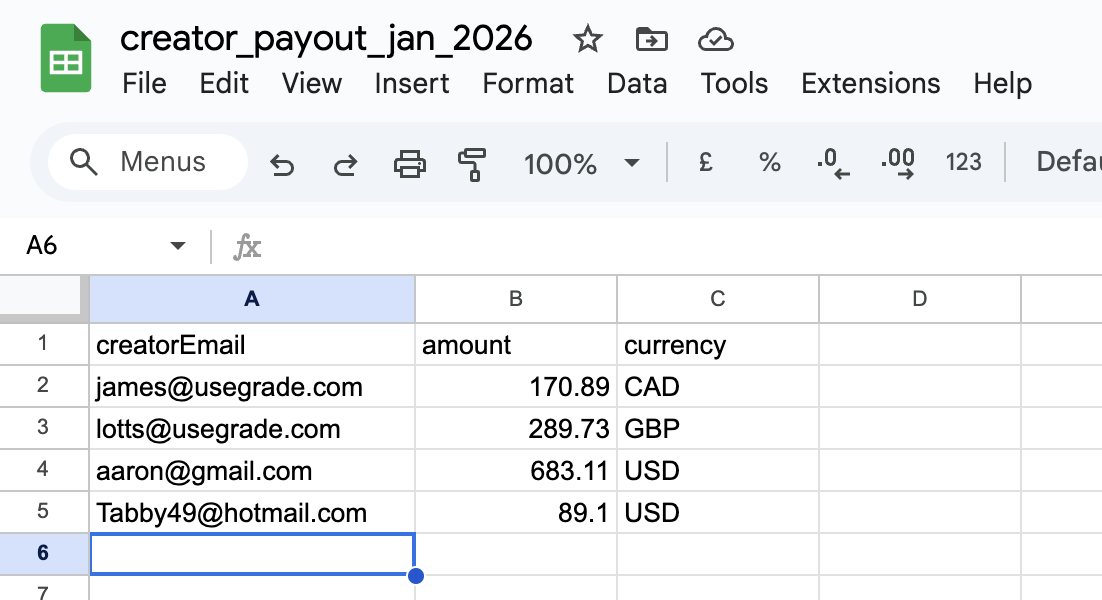
Prepare your spreadsheet by creating a row of column headers for creatorEmail, amount, and optionally currency. If no currency is provided, we will use your preferred currency as set in the settings menu.
Grade supports payouts in USD, EUR, GBP, and CAD; you can pay creators in the same bulk payout batch different currencies.
Once your spreadsheet is ready, export it as a CSV.
3. Import your CSV to Grade
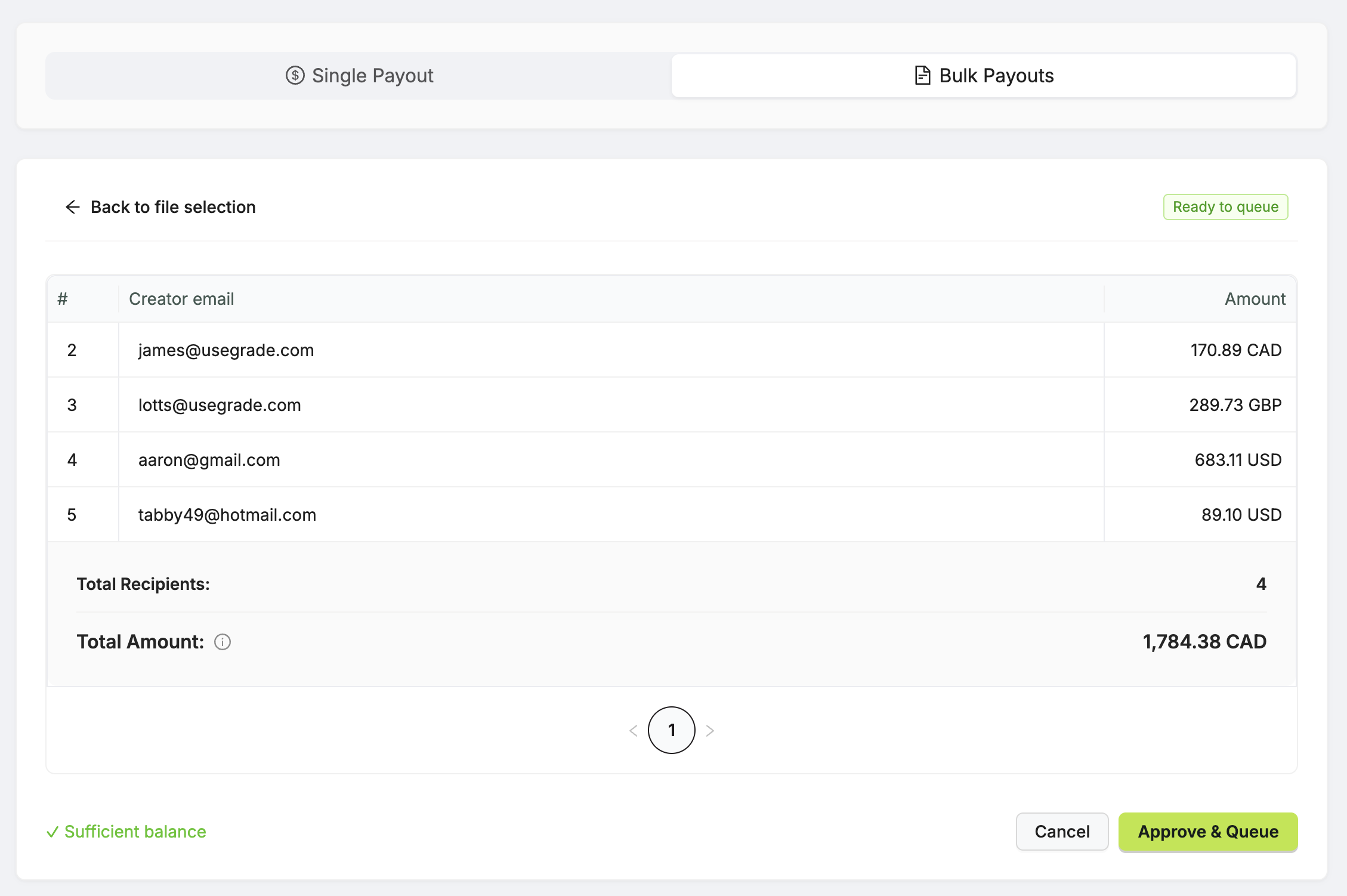
Click the large import area (with the plus sign), select your CSV file from the file picker that appears, then select “Preview file”.
Your data will then be displayed for your review before triggering a full payout. You should look over each email and payout amount to ensure they’re correct, but no stress if you make a mistake; you can cancel payouts anytime before your creator accepts them.
A few things of note:
- We automatically calculate how much it’ll cost to bulk payout all your creators; this will be converted to your preferred currency (as set in the settings menu).
- We do a balance check prior to allow you to approve and queue payments; this is in the bottom left corner. If your account doesn’t have enough balance, you can do a top up quickly in the wallet page and head back to trigger your bulk payout.
4. Approve and queue
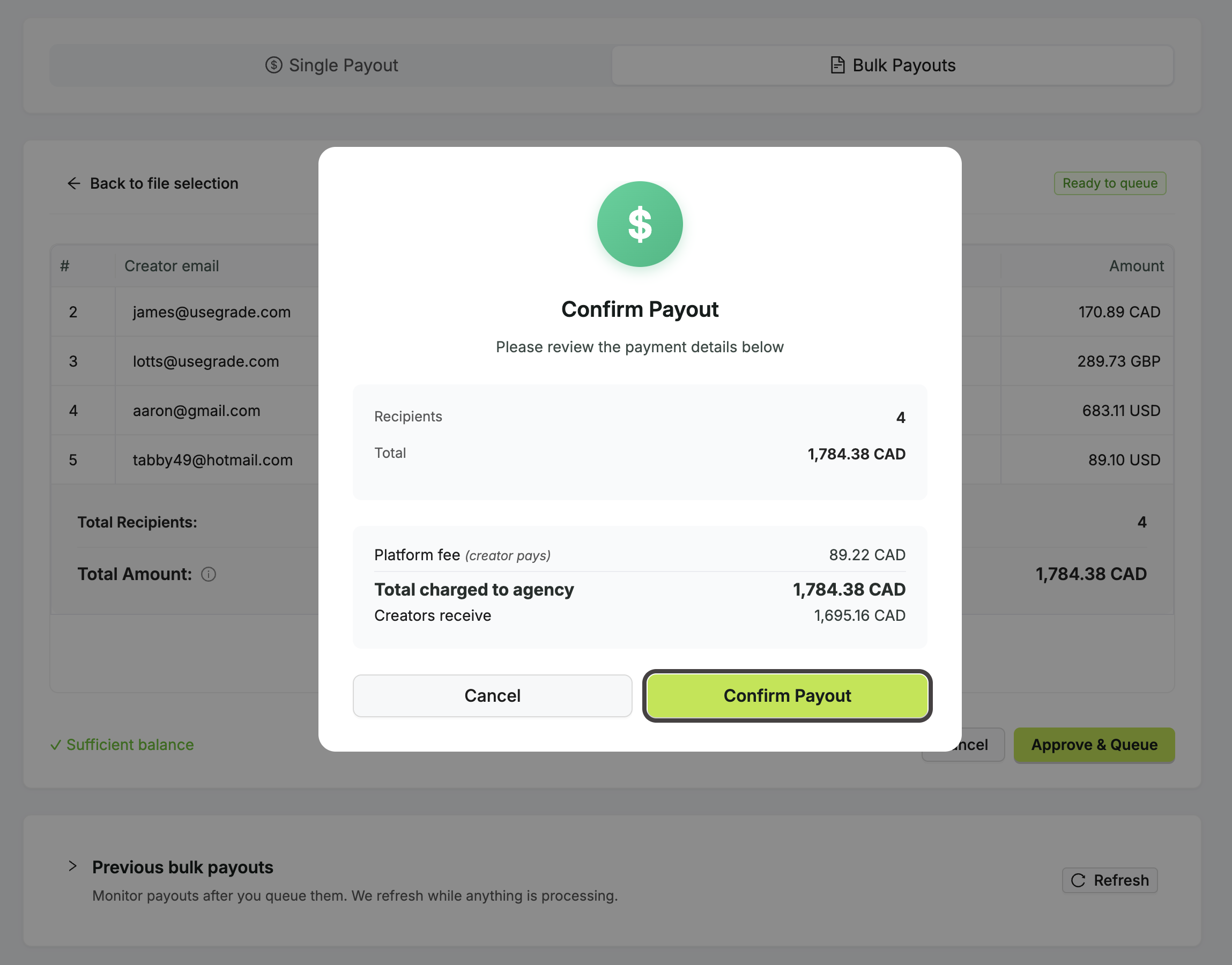
Once you’re ready, click “Approve & Queue”. This will trigger a modal to pop up and allow you to look over your payout once more before it’s sent.
Once you’re ready, click “Confirm Payout” to send the money to your creators.
5. Checking the status
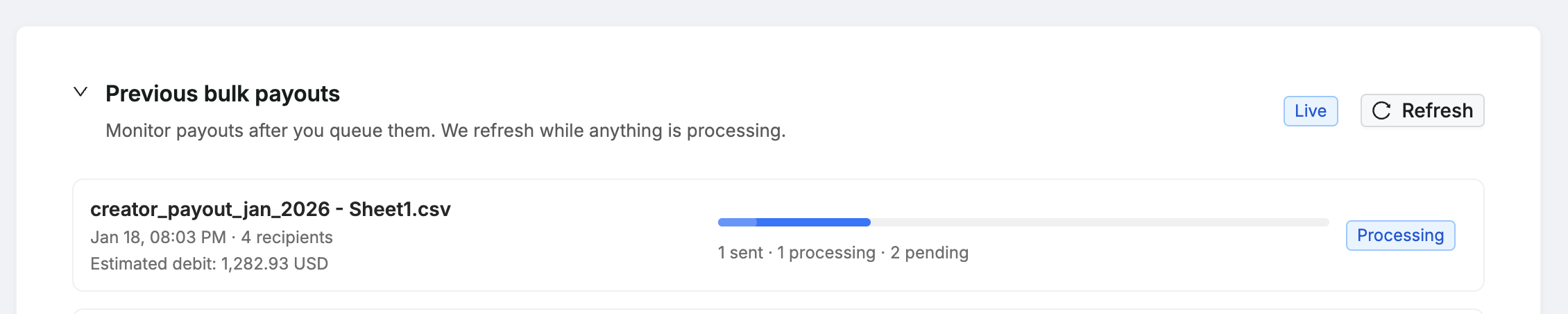
Once you confirm your payout, you’ll be able to expand the “Preview bulk payouts” drawer to keep track of the payouts status. It will report how many were successfully sent, how many are pending, and if there were any issues.
6. What if I made a mistake?
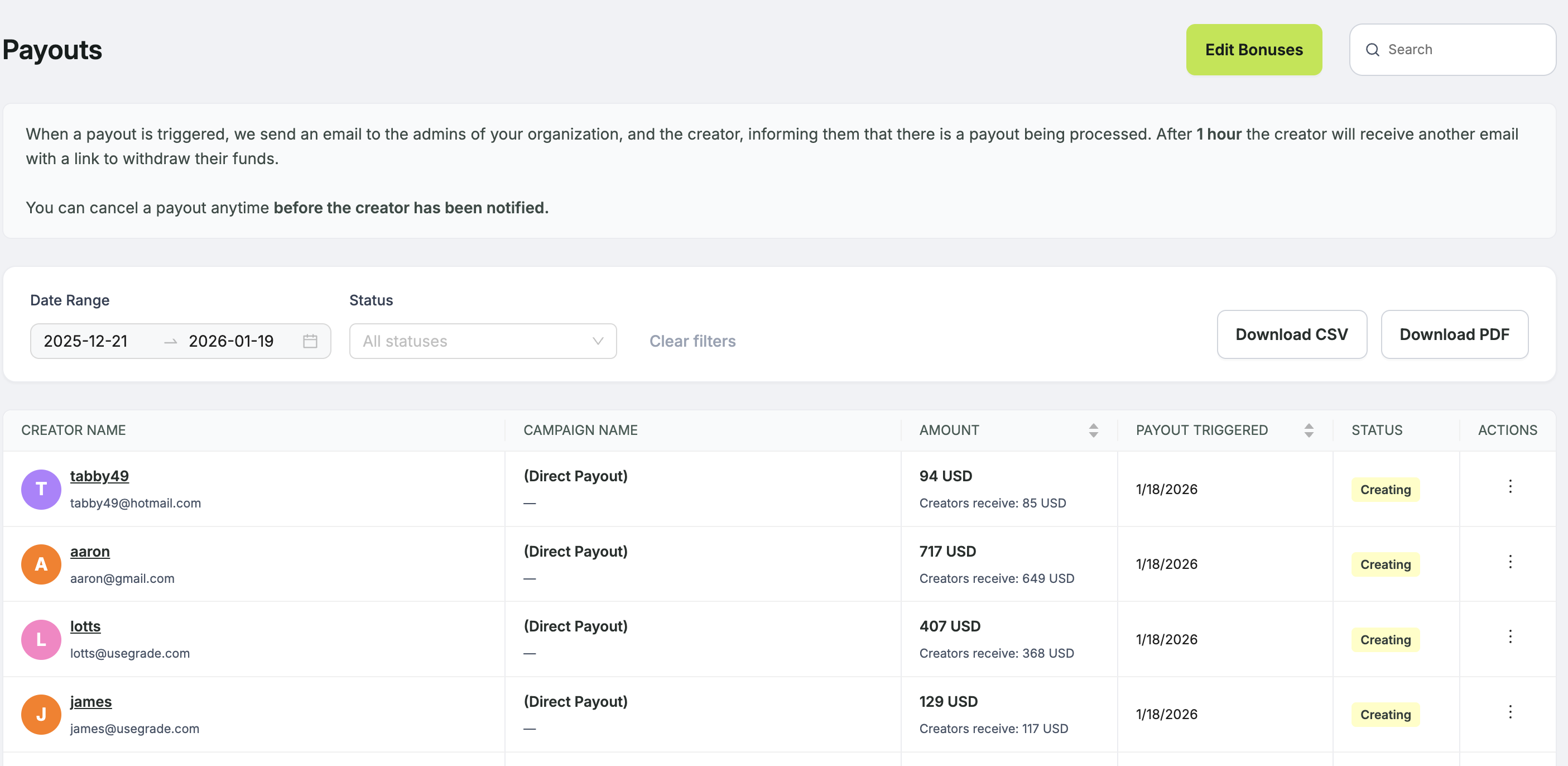
It happens!
Go to the “Payouts” tab and there you’ll see a table with all of the payouts currently “in-flight”. As long as the status isn’t claimed, you can cancel it.
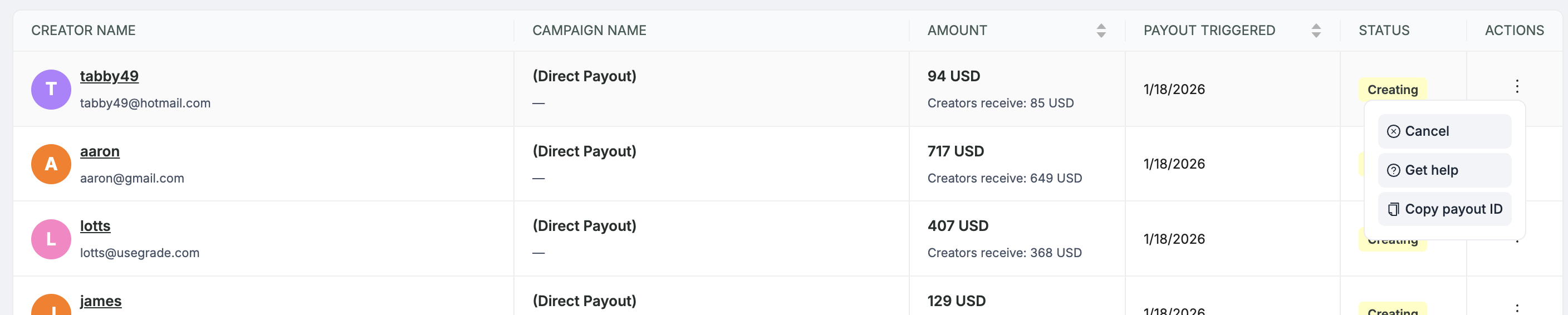
Select the three dot context menu on the creator you want to cancel the payout for, click cancel, confirm the next modal that appears, and you’re good to go.
The money is returned to your wallet, the creator is notified that the last transaction was cancelled, and you can do it again.
If it’s just a one off mistake, we recommend the “Single Payout” option in the Quick Pay tab.
Ready to scale your contractor payouts?
With just their email, you can track results, send payouts, and automate tax forms.
Try Grade Free →
